
Attaching files in the mobile app (Android)
The mobile app supports the following methods for attaching files:
- Selecting and attaching photos and videos
- Taking and attaching a photo
- Capturing and attaching documents (with adjustment feature)
- Recording and attaching videos
- Selecting files from the Files app and attaching them
This page describes the actions that are specific to the mobile app.
Capturing and attaching documents (with adjustment feature)
The following steps use the Edit record screen as an example.
-
On the Record details screen, tap Edit.
-
On the Edit record screen, tap Select file in the Attachment field.
-
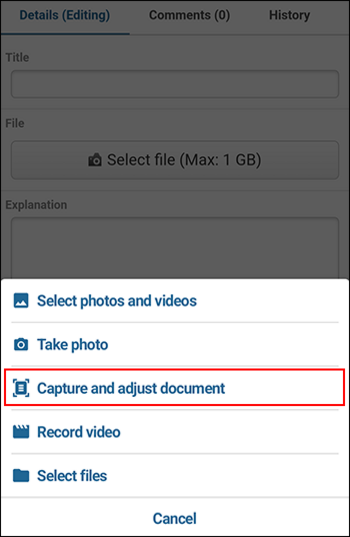
Tap Capture and adjust document from the displayed menu.
-
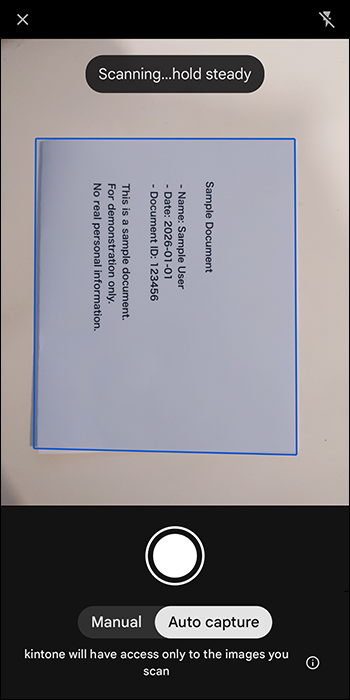
Follow the instructions on the screen, and use your camera to capture your document.
-
If necessary, adjust the appearance of the captured document image.
The following correction features are available in the mobile app:- Auto enhance
- Apply filters
- Crop and rotate
- Erase stains
-
When you complete image adjustment, select the next action to perform.
- Tap Next to attach the captured document image as a JPEG file.
- Tap Discard scan to discard the captured document image and return to the Edit record screen.
-
If necessary, select whether to reduce the size of the photo.
-
Tap Save to save the record.