
Monitoring user access
On the User access monitoring screen, you can check the last access date to kintone and the number of recent access days for each user. You can also download the access status list as a CSV file.
This screen can be used, for example, to check the access activity of each of your users and ensure that your kintone user licenses are assigned appropriately.
Only cybozu.cn administrators can use this feature.
Notes
- The User access monitoring screen shows user access since the kintone update on June 12, 2022, when this feature was released. User access information for June 11, 2022 and earlier is not available.
- The screen does not display access information for the following users:
- Guest users
- Users who have permission to use kintone but whose status is Inactive
For details, refer to the following page.
Deactivating users
- The user access list is not updated in the following cases:
- When a user accesses cybozu.cn services other than kintone (e.g., Garoon and Users & system administration)
- When a user tries to access kintone but an error appears and they are unable to access the service
- When a user executes an API without accessing any screen of kintone
- If this feature was disabled before the November 2022 update, access information for the time when the feature was disabled will not be available.
Opening the "User access monitoring" screen
The User access monitoring screen is accessed from the kintone administration screen.
-
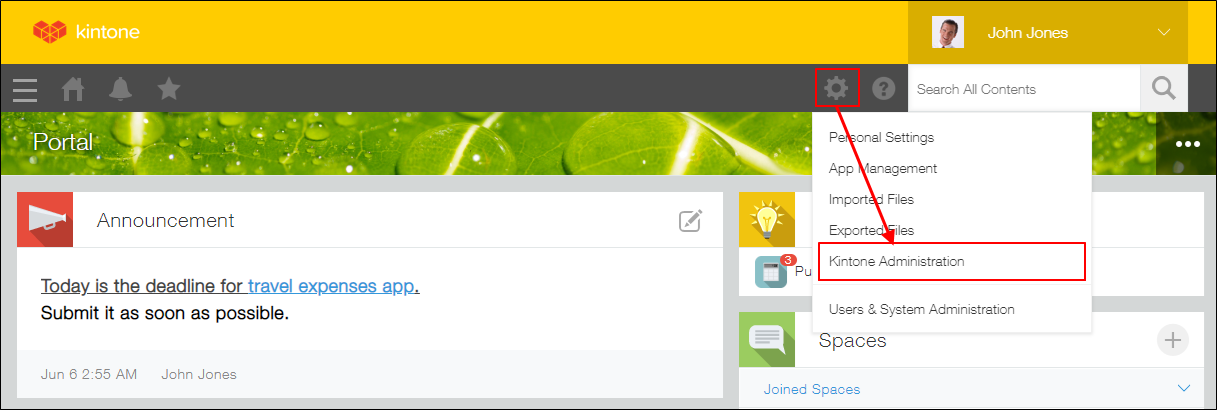
Click the Settings icon (the gear-shaped icon) at the top of the kintone screen, and then click kintone administration.
-
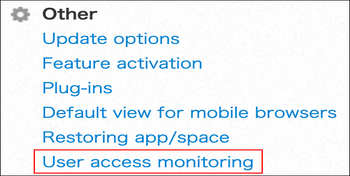
On the kintone administration screen, click User access monitoring under Other.
Overview of the "List of user access" section
This section describes the items in the List of user access section of the User access monitoring screen.
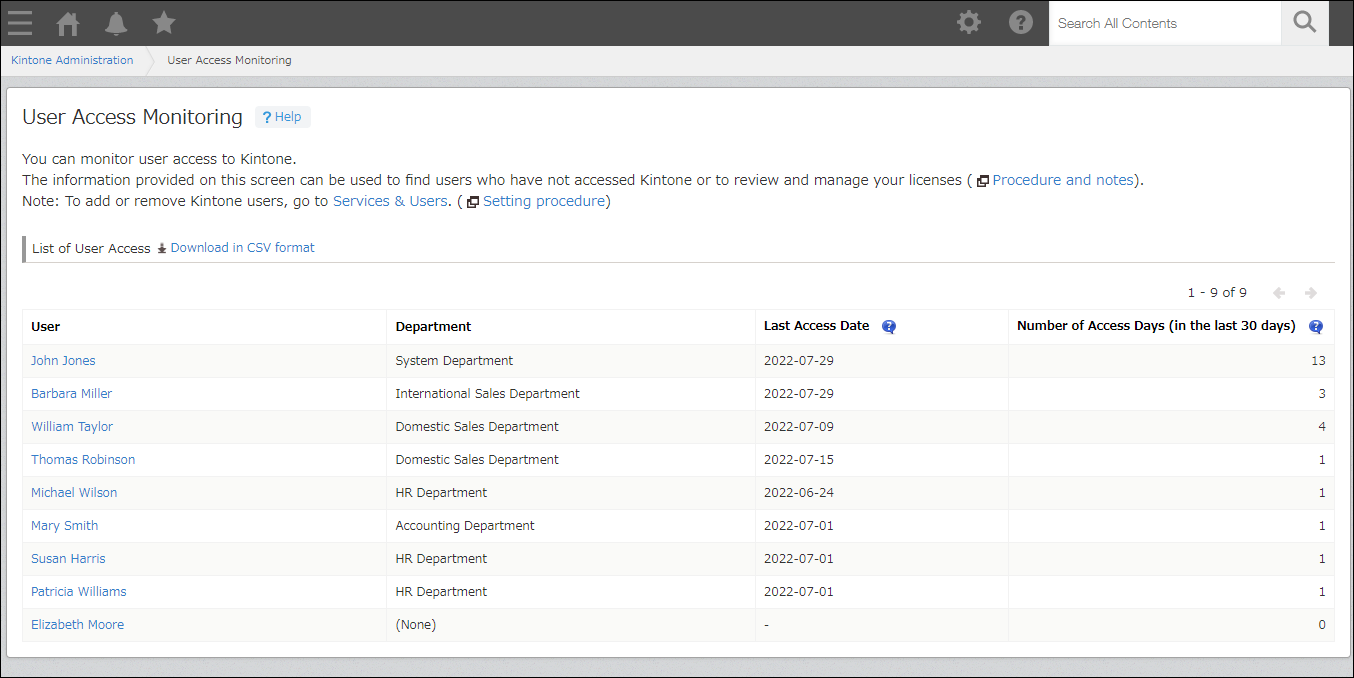
- User
- This column displays the names of kintone users.
Click a user name to view their profile details. Inactive and guest users are not displayed.
If a user has a Localized name set in Users & system administration, their name appears according to the cybozu.cn administrator's language setting. However, when you click the column name, users are sorted in ascending or descending order not by Localized name, but by Display name. - Department
- This column displays the department to which each user belongs.
If a user belongs to more than one department, the column shows the one that is set as the Priority Departments on the user information screen in Users & system administration. If no departments are set for a user, the column shows (None).
You can click on the column name to sort the data in accordance with the display order of departments in the Departments & Users settings in Users & system administration. - Last access date
- This column displays the date on which each user last accessed kintone.
If "-" is displayed for a user, it means that the user has not accessed kintone since the date this feature was released (June 12, 2022). - Number of access days (in the last 30 days)
- This column displays the number of days each user accessed kintone in the last 30 days, including the current day.
If this feature was disabled before the November 2022 update, access information for the time when the feature was disabled will not be available.
Downloading the list of user access in CSV format
The information under List of user access can be downloaded in CSV format (UTF-8 with BOM).
Downloading the information as a file lets you analyze user access data in Excel. The file can also be used as a record for organizing and managing user accounts.
-
Click the Settings icon (the gear-shaped icon) at the top of the kintone screen, and then click kintone administration.
-
On the kintone administration screen, click User access monitoring under Other.
-
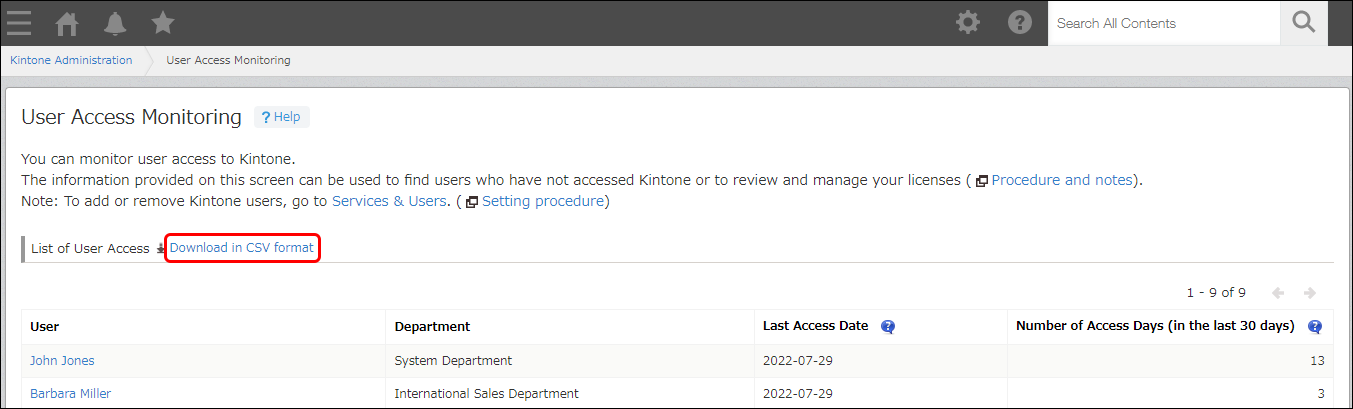
Click Download in CSV format on the User access monitoring screen.
In addition to the items displayed under List of user access, the CSV file also contains user login names and department codes.
Information included in the "List of user access" CSV file
This section describes the information included in the List of user access CSV file.

- User
- Contains the information from the User column on the User access monitoring screen.
- User (Login name)
- Contains users' login names. This information is not displayed on the "User Access Monitoring" screen, but is added to the downloaded file.
Users' login names are configured in the Department & Users settings in Users & system administration. - Department
- Contains the Department column on the User access monitoring screen.
If no departments are set for a user, their cell will be left blank. - Department (Department code)
- Contains users' department codes. This information is not displayed on the "User Access Monitoring" screen, but is added when the file is downloaded.
If no departments are set for a user, their cell will be left blank.
Department codes are configured in the Department & Users settings in Users & system administration. - Last access date
- Contains the dates in the Last access date column on the User access monitoring screen, formatted as "yyyy-MM-dd".
If "-" is displayed in the column on the User access monitoring screen, the corresponding cell in the downloaded file is left blank. - Number of access days (in the last 30 days)
- Contains the information from the Number of access days (in the last 30 days) column on the User access monitoring screen.