
Editing records
This article explains how to edit individual records from their "Record details" screen.
Note that records can be edited only by users who are granted the "Edit records" permission in the Permissions for app setting. If the Permissions for records setting is configured, users must also be granted the "Edit" permission for the records in the Permissions for records setting.
-
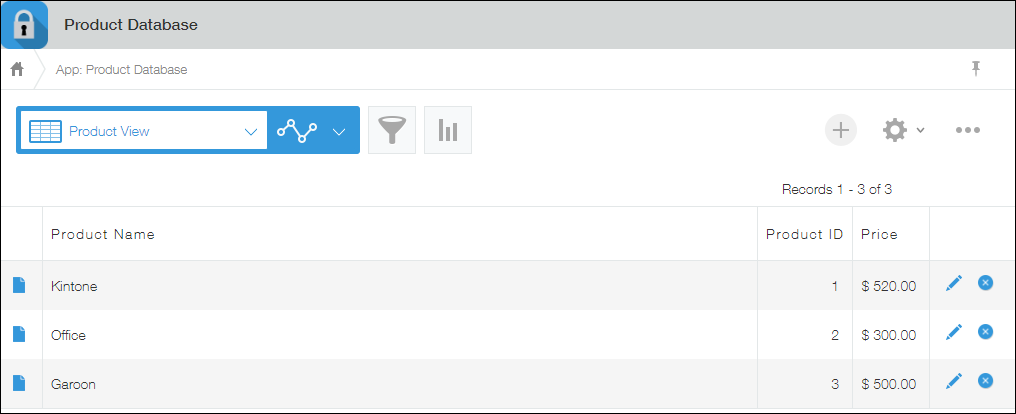
Click an app to open the View screen.
-
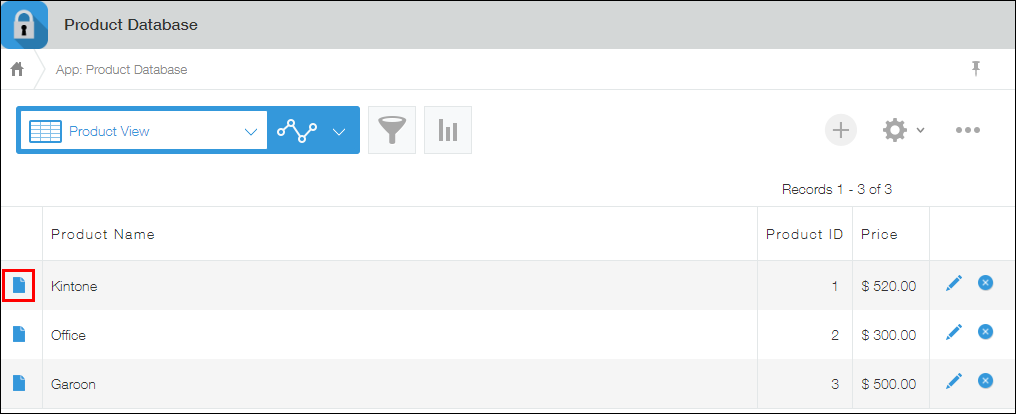
Click the Show record details icon at the far left of the record you want to edit.
-
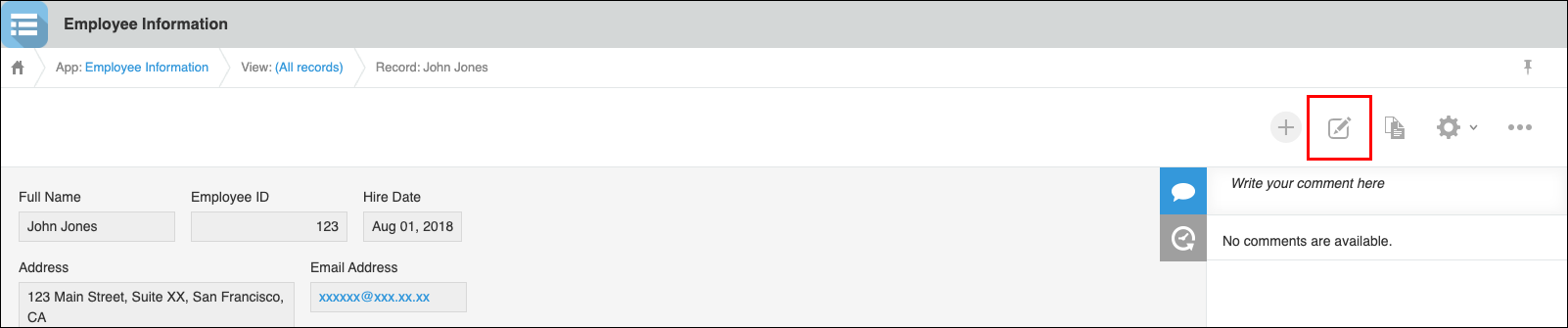
Click the Edit record icon.
-
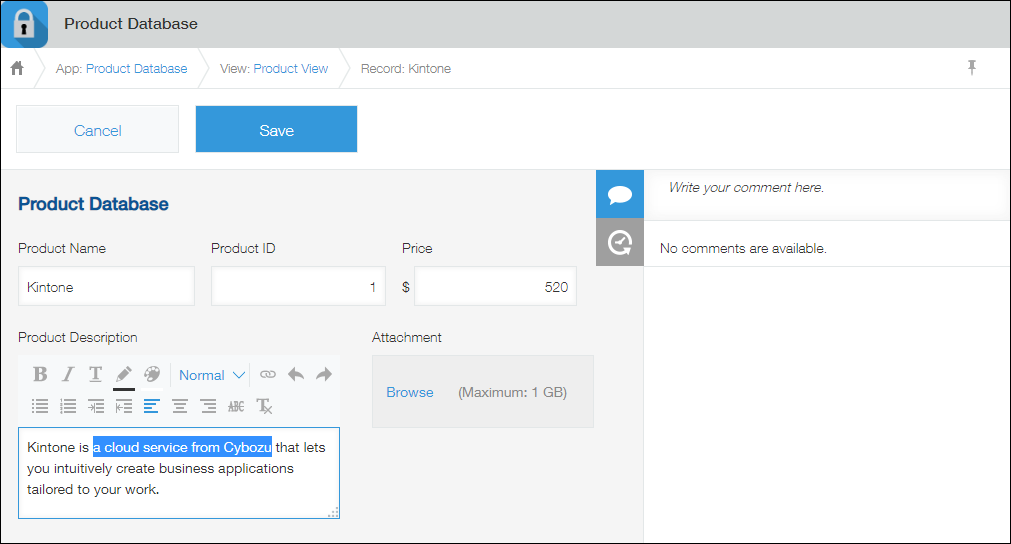
Edit the record.
-
Click Save to save the record.
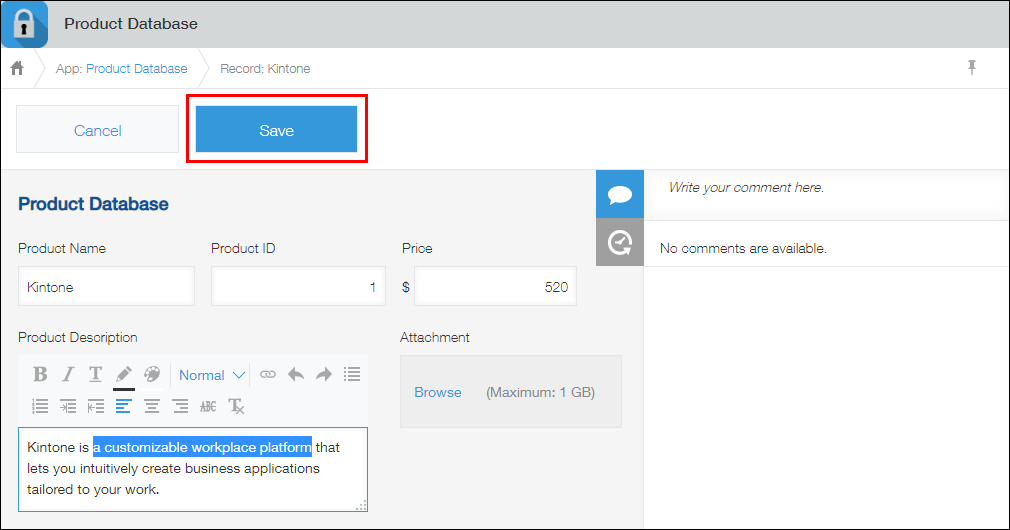
You have now edited the record.
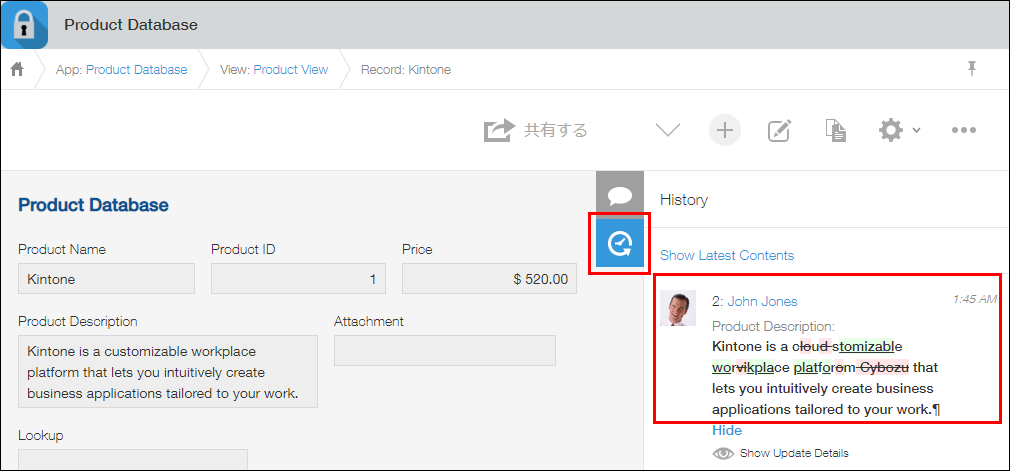
Click the History icon for the record to check your changes.
When a record is updated while you are viewing or editing it
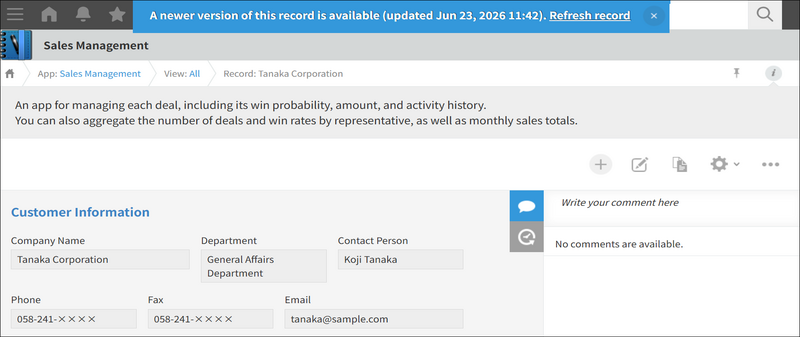
A record may be updated from another tab or by another user while you are viewing or editing it. When this happens, a message appears at the top of the screen to notify you of the new version and the update datetime.
- When viewing the Record details screen:
Click Refresh record to update the record to the latest version, excluding the comments section. Your draft comments remain.
- When editing a record:
Click Open latest version to open the latest version of the Record details screen in a new tab. The edit screen remains open, so you do not lose your input.
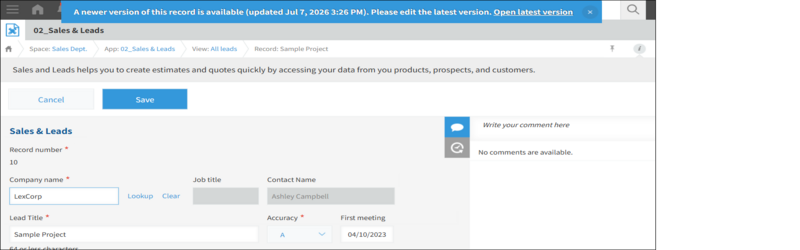 Even if you close the message, the original edit screen is not updated. Open the latest version of the record in a separate tab. In the new tab, edit and save the record while referring to your original edits.
If you try to save on the original edit screen, you cannot save the record due to an error.
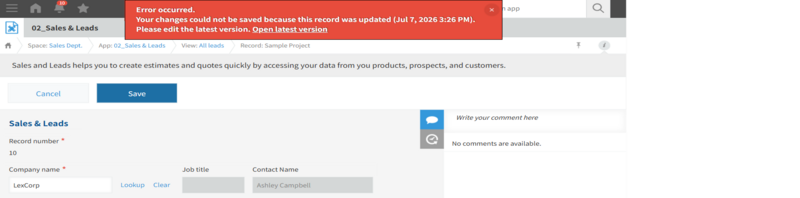
When you cannot save a record due to an error
There may be a problem in the permission settings or app settings.
To resolve the issue, refer to the following pages.