
Checking the number of users with access
cybozu.cn administrators can check the number of users who can access each app from the Apps section in the App management screen.
This feature can be used, for example, to identify apps with a large number of users and to confirm with the person in charge whether the appropriate permissions are set.
Number of users displayed in the "Regular users with access" column
This column displays the number of regular users with access to the app. "Regular users" refers to users registered in cybozu.cn administration.
Specifically, it displays the number of users who meet all of the following conditions:
- On the Permissions for app screen in App settings, one or more of the following checkboxes are selected:
- View records
- Add records
- Edit records
- Delete records
- Import from file
- Export to file
- The Allow checkbox has been selected for Manage/use/delete apps for them on the Permissions for app groups screen for their app group in kintone administration.
- If the app belongs to a private space or a guest space, the user must be a member of the space.
- Their Account status is set to Active on the Change user information screen in Users & system administration.
Note that users with management permission for the app, kintone administrators, and cybozu.cn administrators are not included in the number of regular users with access to the app.
Number of users displayed in the "Guest users with access" column
This column displays the number of guest users with access to the app if the app belongs to a guest space. Specifically, it displays the number of guest users who meet all of the following conditions:
- On the Permissions for app screen in App settings, one or more of the following checkboxes are selected:
- View records
- Add records
- Edit records
- Delete records
- Import from file
- Export to file
- On the Permissions for app groups screen in kintone administration, the Allow checkbox for Manage/use/delete apps is selected for Everyone in the Public app group.
- On the Guest users tab of the Space settings dialog for the guest space to which the app belongs, the Status is "Active".
Notes on data retrieval for the "Regular users with access" and "Guest users with access" columns
The following are the points to note regarding data retrieval for the Regular users with access and Guest users with access columns:
- When you open the App management screen, the data for the Regular users with access and Guest users with access columns is in the Not retrieved state.
If you refresh your web browser after retrieving the data, these columns will return to the Not retrieved state. cybozu.cn administrators must manually retrieve the data when necessary. - Data for the column can be retrieved up to 10 times per day.
- The number of retrievals resets daily at 12:00 AM UTC (9:00 AM JST).
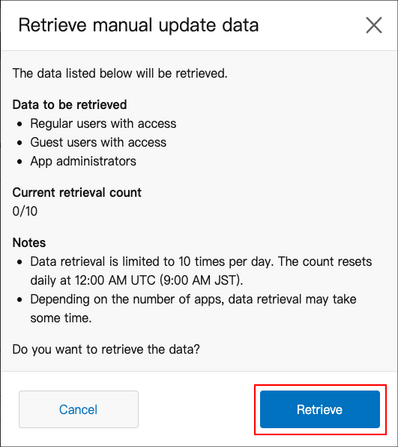
- The number of currently available retrievals appears on the Retrieve manual update data dialog that appears when you click the button for retrieving data.
- If you try to retrieve data when the daily retrieval limit has been reached, a Caution dialog will appear instead of the Retrieve manual update data dialog. This dialog shows the date and time of the last data retrieval. You can also click the Display button on this dialog to reflect the last retrieved data in the App administrators column.
- Depending on the number of apps, it may take some time to retrieve the data for the Regular users with access and Guest users with access columns. Please do not close the screen, and wait until the data has been retrieved.
Retrieving data for the "Regular users with access" and "Guest users with access" columns
-
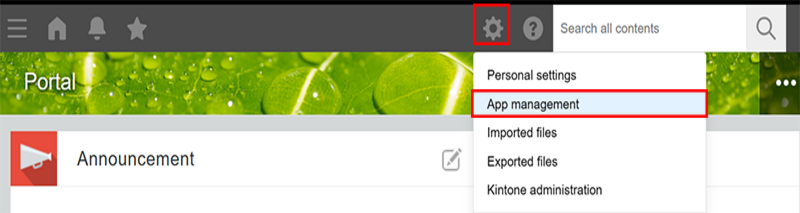
Click the Settings icon (the gear-shaped icon) at the top of kintone, then click App management.
-
On the App management screen, click Retrieve manual update data in the Apps section.

-
On the Retrieve manual update data dialog, click the Retrieve button.
 The number of users who can access each app is displayed in the Regular users with access and Guest users with access columns under Apps.
