
Selecting the date format to display from a set of options
By using an IF function and a DATE_FORMAT function, you can convert the date or the date and time into a character string that uses a specified date and time format.
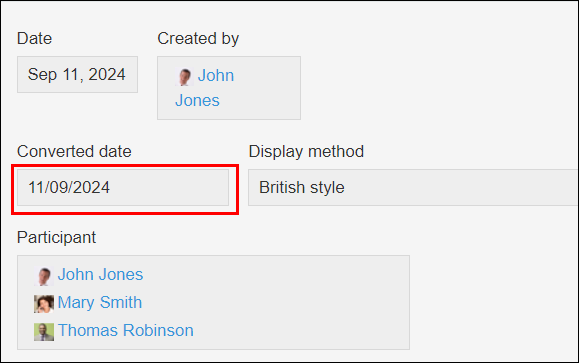
As an example, this page explains how to change the displayed date format based on which country is selected in a Radio button field. The date will automatically be displayed in the Japanese date format if [Japanese style] is selected, the US date format if [American style] is selected, or the British date format if [British style] is selected.
Preparation
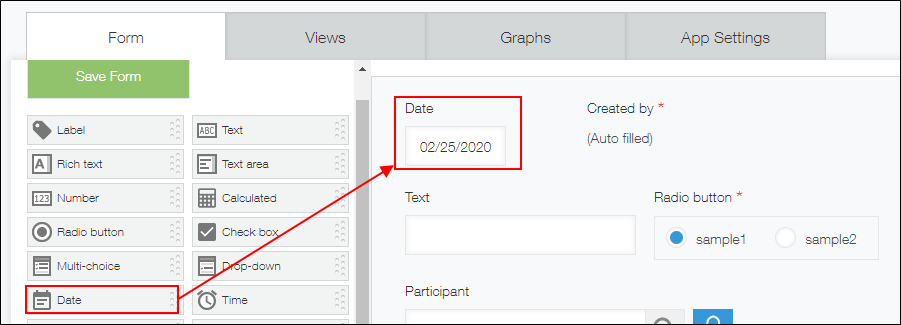
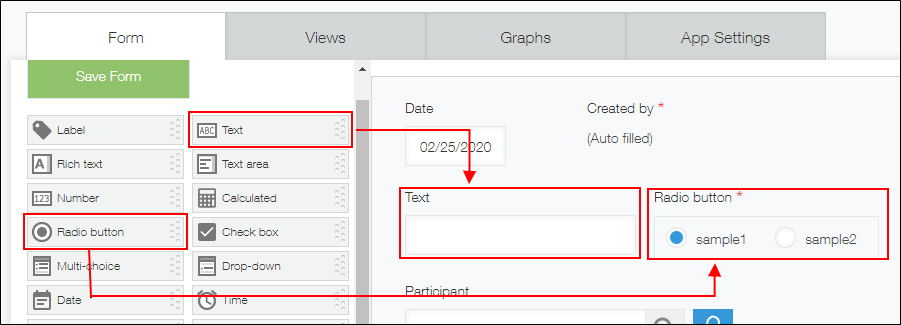
Place the following fields in the form and set their field names and field codes.
- Date field
- Field name and field code: "Date"
- Text field
- Field name and field code: Converted date
- Radio button field
- Field name: "Display method"; Field code: "Display_method"
- Options: "Japanese style", "American style", "British style"
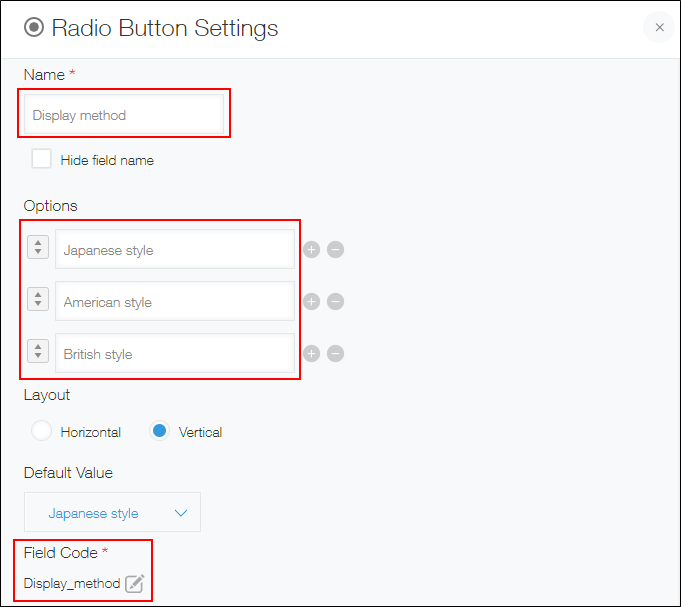
Setting up the formula
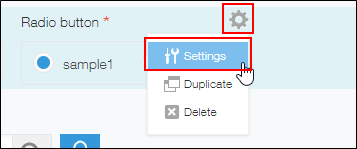
The formula in this example needs to be set for the Text field.
IF(Display_Method="Japanese Style", DATE_FORMAT(Date, "yyyy/MM/dd", "Etc/GMT"), IF(Display_Method="American Style", DATE_FORMAT(Date, "MM/dd/yyyy", "Etc/GMT"), DATE_FORMAT(Date, "dd/MM/yyyy", "Etc/GMT")))