
Personal settings
On the Personal Settings screen, each user can configure their settings for Time format, Email notifications, and Desktop notifications.
The settings that you save here are applied only to you.
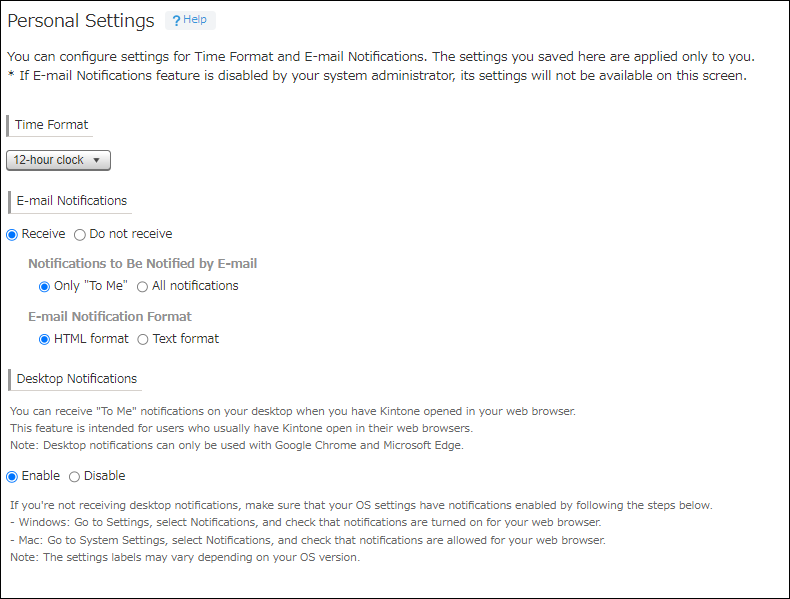
To open Personal settings, click the Settings icon (the gear-shaped icon) at the top of kintone, then click Personal settings.
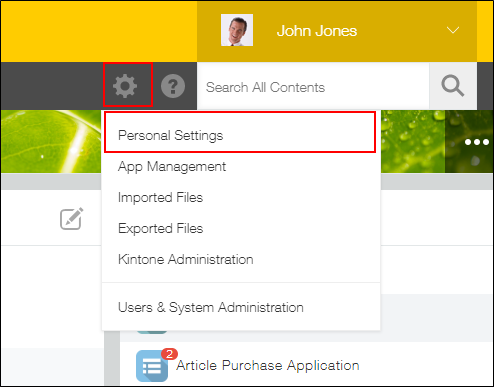
You can go back to the previous screen by clicking Back.
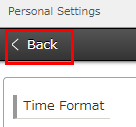
Each of the settings that can be configured are described in the sections below.
Time format
You can specify the date format (12-hour clock or 24-hour clock to be used in kintone.
By default, 12-hour clock is used.
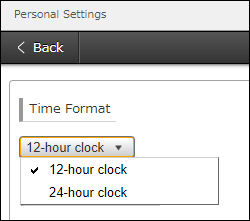
To change the time format, select 12-hour clock or 24-hour clock from the drop-down, and then click Save.
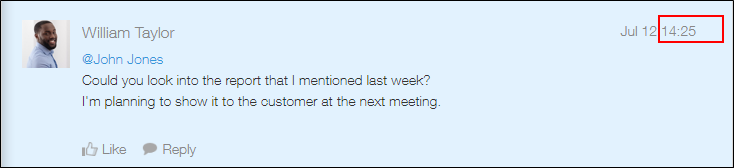
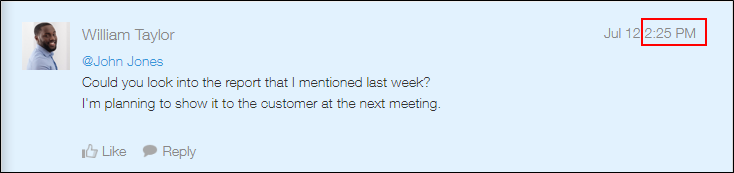
When you change the time format, all times, such as comment posting times, will be displayed in the selected format.
-
When 24-hour clock is specified
-
When 12-hour clock is specified
Email notifications
You can select whether to receive email notifications, what kind of email notifications to receive, and the format of email notifications.
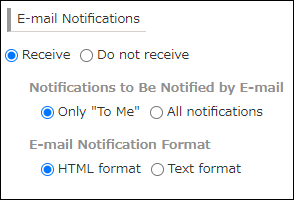
By default, the same options as those selected for Default value for the receiving setting and Email notification format in the Email notifications settings on the Feature activation screen in kintone administration are selected.
Reference: Settings to activate email notifications
If you want to change the Email notifications settings, change the configurable options and then click Save.
The following shows the details of configurable options for Email notifications.
"Receive" and "Do not receive"
Specify whether to receive notifications you get in kintone via emails.
If you select
Receive, you need to specify the following as well.
Notifications to be notified by email
Specify whether to receive "To Me" notifications only or "All" notifications.
- If you select Only "To me":
You will receive email notifications for the notifications sent when you are specified as a recipient. - If you select All notifications:
You will receive all notifications including "To Me" notifications via e-mail.
Note that this may result in a large number of e-mails being sent to you.
Differences between "To Me" and "All" notifications are described in the following page:
Differences between "To me" and "All" notifications
Some notifications cannot be sent via e-mail. For details, refer to notes specified under each table on the following page:
When notifications are sent and who receives them
Email notification format
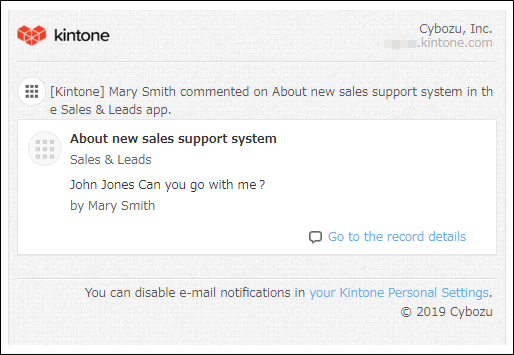
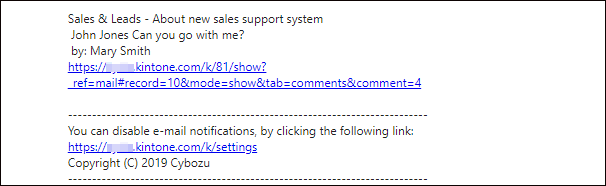
You can specify whether to receive email notifications in HTML format or text format.
- Example of an email notification in HTML format:
- Example of an email notification in text format:
Desktop notifications
This setting lets you configure whether desktop notifications are displayed when "To me" notifications are received in kintone.
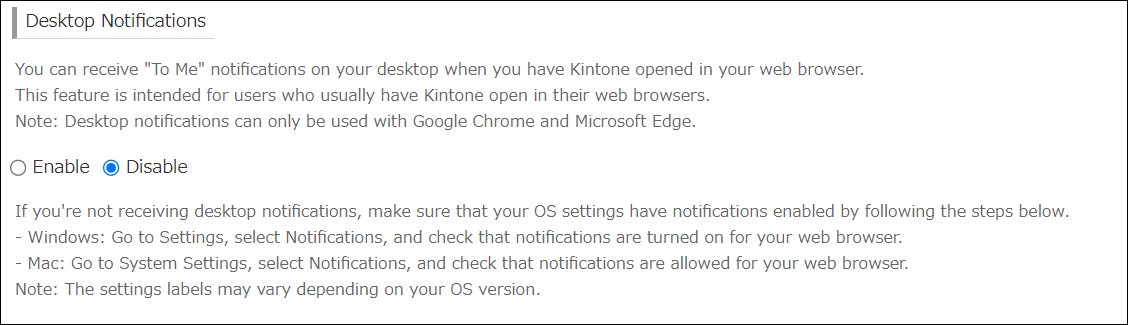
For details, refer to the following page.
Setting up desktop notifications