What are app groups?
App groups are for collectively managing permissions for multiple apps.
Using an app group, you can configure permissions (e.g., for creating or managing apps) for all of the apps in the group at once.
Every app belongs to an app group; when an app is created, it is added to the "Public" app group by default.
In addition to the "Public" app group, kintone administrators can create app groups as needed.
The following section describes the details of app groups.
Preset app groups
kintone has the following preset app groups. These app groups cannot be deleted.
Public
- When you create an app, it is categorized into the "Public" app group by default.
You can change the default app group from the "Public" app group to a different app group. - By default, when apps belong to the "Public" app group, they are visible to all users.
- You can configure permissions of app groups to restrict creating or using apps on a per-user basis.
- In-space apps belong to the "Public" app group. They cannot be moved to a different app group.
An app in a private space is only accessible to the members of that space.
Private
- Apps that belong to the "Private" app group are only available to app creators. If you are not the creator of an app in the "Private" app group, the app does not appear in the App section of a portal and in the Apps section on the App management screen.
- All users with permission to create apps can create apps that belong to the "Private" app group.
Creating and managing app groups
In addition to the preset app groups, new app groups can be created from kintone administration.
Permissions required for creating and managing app groups
To create and manage app groups, the "App groups settings" permission is required. This is one of the permissions that can be configured for kintone administrators.
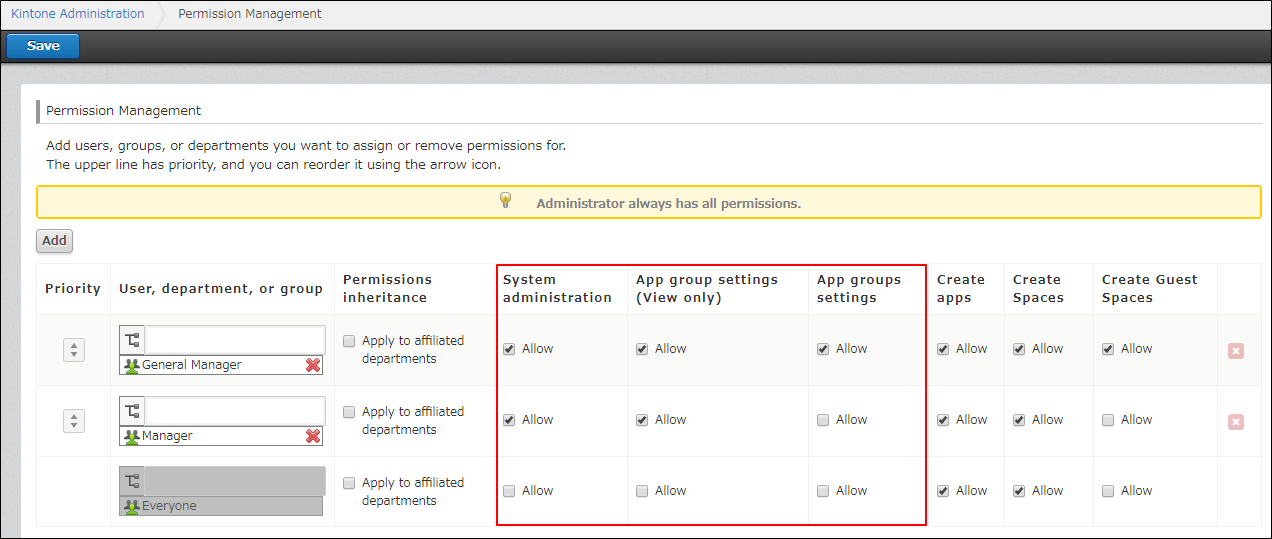
Only users granted the "App group settings" permission can create and manage app groups.
Users who are granted permission only for the "App group settings (View only)" cannot perform the following actions.
- Create app groups
- Edit app group names
- Save changes to the permissions for app groups
- Delete app groups
Users who are granted permission only for the "App group settings (View only)" cannot perform the following actions.
Setting system-wide permissions for kintone
Creating app groups
You can create an app group from the App groups screen of kintone administration.
For details, refer to the following page:
Adding an app group
What you can do with a created app group
For the created app groups, you can allow or disallow users, groups, and departments to perform the following actions.
- Create apps that belong to the group
- Manage, use, and delete apps that belong to the group
Users cannot perform actions that are not allowed by the app group, regardless of whether the actions are allowed by the app's permission settings
Checking app groups
You can check the app group to which an app belongs in the following ways.
-
In kintone administration
Open the kintone administration screen and select App groups.
By clicking Assigned apps of each app group, you can see the apps that belong to the app group.
Opening the "kintone administration" screen -
In your app settings
You can check and change the app group to which the app belongs on the Permission for app screen.
For details, refer to the following page:
Changing which app group an app belongs to -
On the App management screen
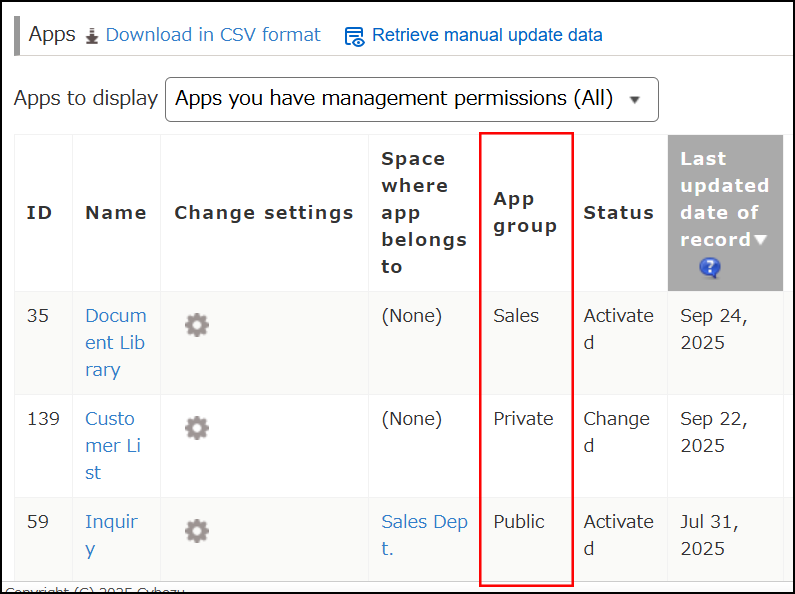
On the App management screen, the app group is displayed for each of the apps listed.
For details, refer to the following page:
Checking apps on the "App management" screen