Overview of the mobile view
The mobile view features a unique UI, such as a navigation menu. You can quickly access the information you need.
First-time access
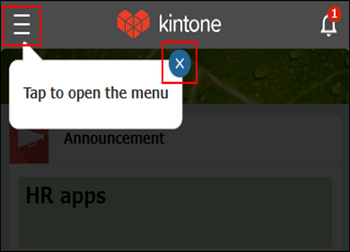
When you access the mobile view for the first time, a Tap to open the menu pop-up appears. To display the portal, tap Tap to close this popup, or tap Open navigation menuin the top left of the kintone screen.
Portal
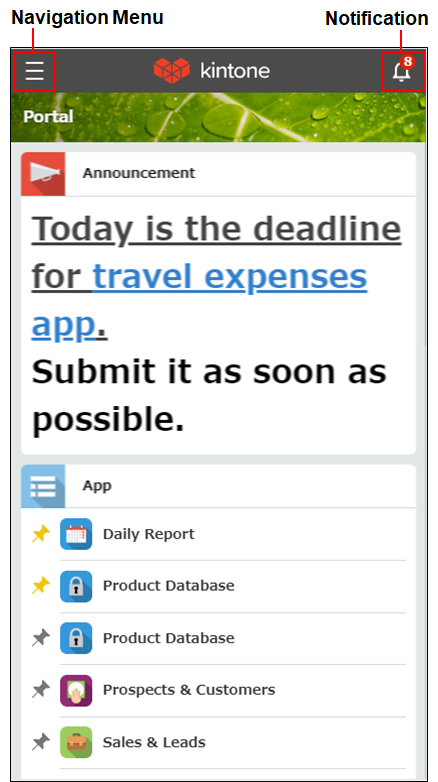
As in the desktop view, your portal is the home page in the mobile view. Your apps and spaces are displayed under the Announcement section.
Tapping an app attached to the
Announcement section takes you to the app.
In the app list and space list, your favorite apps and spaces are displayed at the top.
By tapping the pin button to the left of an app or space name, you can add the app or space to, or remove it from, your favorites.
When you tap the Open navigation menu button at the top left of the screen, the navigation menu opens.
When you tap the bell-shaped Open notification list button at the top right of the screen, you can view notifications.
Navigation menu
From the Portal, apps, or spaces, when you tap the Open navigation menu button at the top left of the screen, the navigation menu opens.
From the navigation menu, you can quickly access the following.
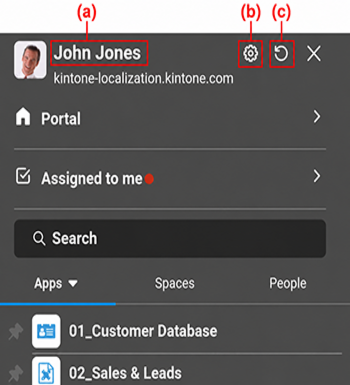
- (a): User name
Tapping the name navigates you to your People page. - (b): Open settings screen
Personal settings, Desktop view (if you're currently using a web browser), Help, Help us improve kintone, and Logout are displayed.
As in the desktop view, you can configure your Time format and Email notifications settings in Personal settings. - (c): Reload (only on the mobile app)
This reloads the screen. This icon is displayed only on the mobile app. - Portal
This navigates to Portal. - Assigned to me
Apps in which you need to perform process management actions are displayed together with the number of records assigned to you. - Search
This searches throughout kintone. - Apps
This displays a list of apps. You can switch between All apps and Recently opened apps.
In All apps, apps appear in alphabetical order. Apps added to favorites appear at the top, regardless of their names.
In Recently opened apps, apps appear in the order of most recently opened.
When you tap the pin-shaped Not added to favorites or Added to favorites button on the left of each app, you can add or remove it from favorites. - Spaces
This displays a list of spaces.
When you tap the pin-shaped Not added to favorites or Added to favorites button on the left of each space, you can add or remove it from favorites. - People
A list of People pages belonging to other users is displayed.
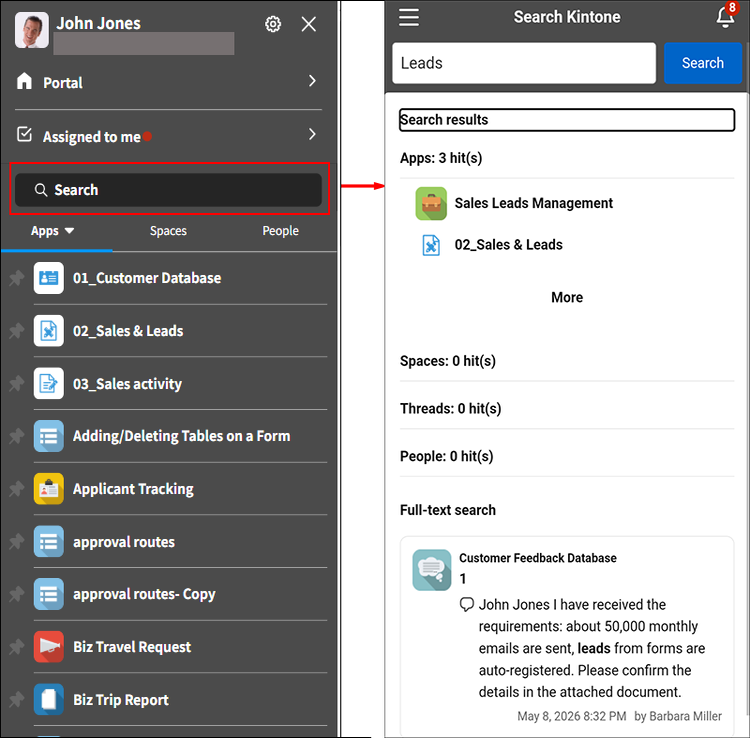
Search
As in the desktop view, you can search throughout kintone. Search results include apps and spaces, as well as the contents of attached files. On an app screen, you can search within that app.
Notifications
The bell-shaped Open notification list button appears at the top right of every screen, allowing you to quickly check notifications at any time. The Open notification list button displays the number of unread "To me" notifications.
If you check notifications while working on another screen, you can return to that screen by tapping the back-arrow Close notification list button at the top left.
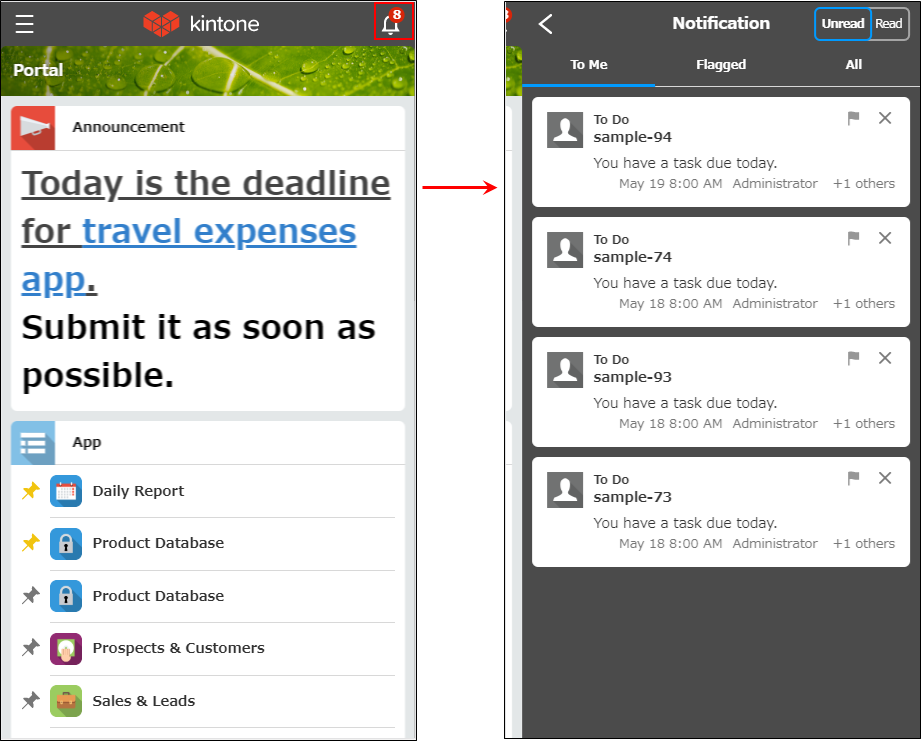
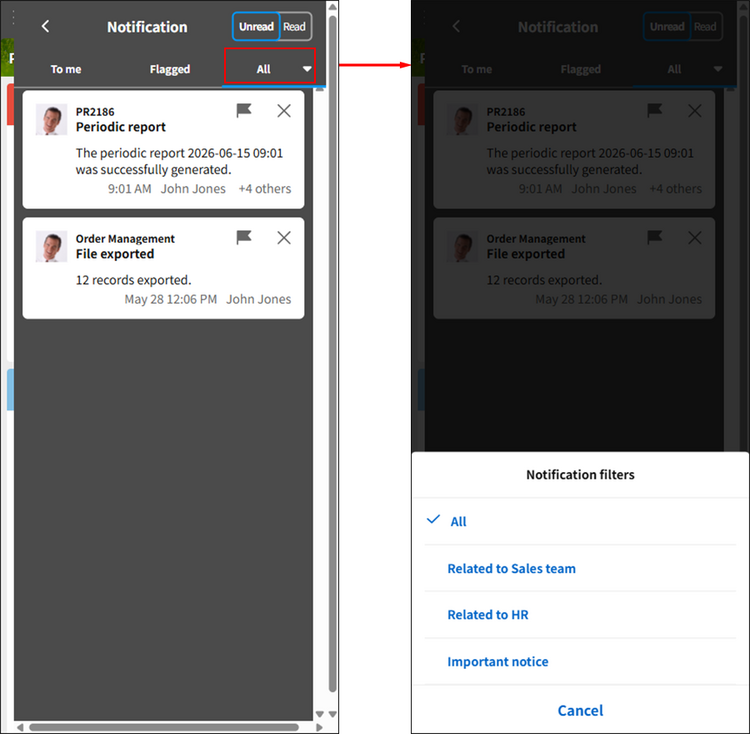
The Notifications screen displays notifications in separate tabs: To me, Read later, and All (or a filter you created). You can switch between Unread and Read notifications. For details on notifications, see the following page.
Understanding notifications on mobile devices
Apps
When you open an app, the View screen appears, as in the desktop view.
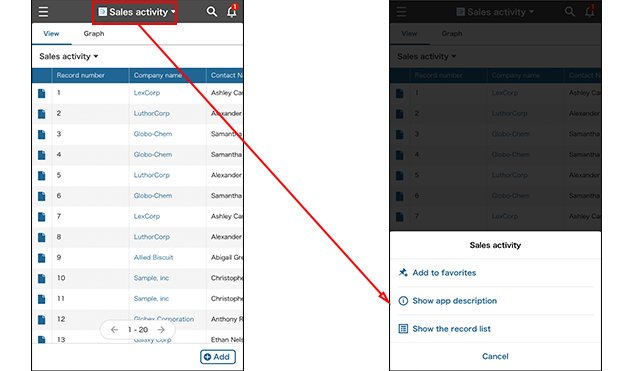
When you tap the app name at the top of the screen, the app action menu appears, where you can perform the following.
- Add the app to your favorites / Remove the app from your favorites
- Show app description (Only when app description is added)
- Show the view of the app
The following sections describe the View, Record details, and Search in app screens.
The "View" screen
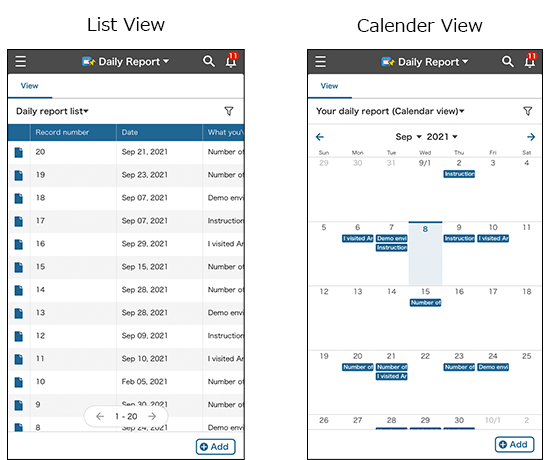
As with the desktop view, you can choose between the following view display formats.
- List view
- Calendar view
- Custom view
In a list view, the number of comments on a record can also be checked.
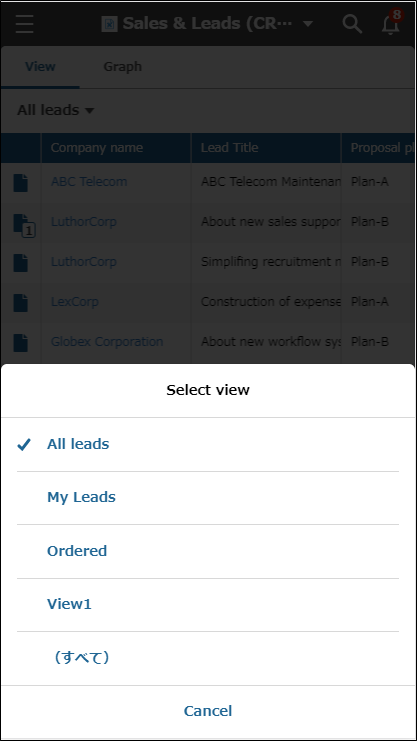
Also, you can switch between views or graphs by tapping their respective tabs. Tap a list or graph name to change the list or graph that is displayed.
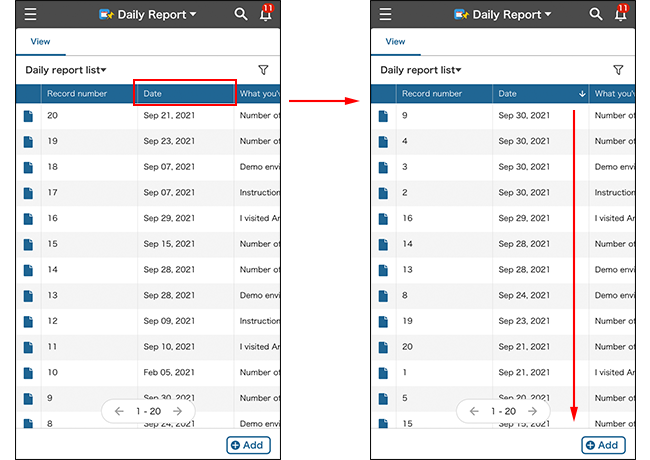
You can change the sort order by tapping a field name in the header row of the view.
You can check or change the current filter condition and the sort order by tapping the Filter button.For details on filtering, refer to the following page.
Filtering records in the mobile view
The "Record details" screen
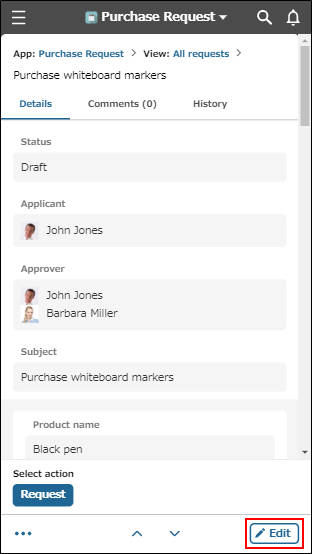
On the Record details screen, you can both edit the record and enter comments.
The following items are fixed at the bottom of the screen.
- The Select action section (for process management and app actions)
- Open the action menu for this record button (for deleting, copying, sharing, duplicating, or adding a record)
- The Previous record/Next record buttons
- Edit button
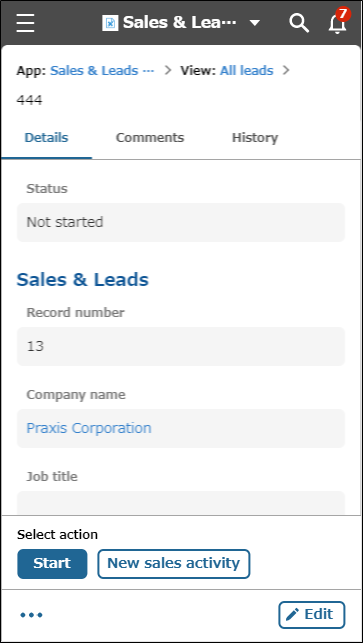
The following sections describe each menu on the Record details screen.
Comments
Tapping the Comments tab lets you view and write comments.
Tap the
Options button to display the Delete comment and Copy comment permalink buttons.
Editing records
You can edit the record by tapping Edit at the bottom right of the screen.
Action menu for records
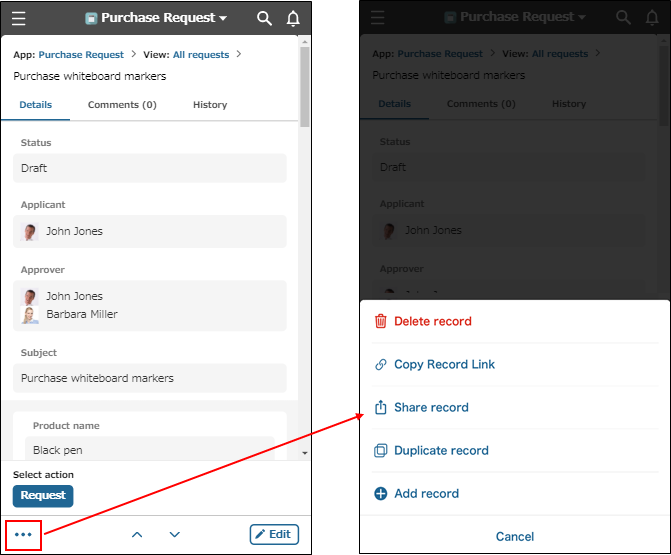
From the Open the action menu for this record button, you can select the following options.
- Delete record
- Copy record link
You can copy the URL of the Record details screen, and paste it to kintone or to non-kintone services. - Share record
You can share the URL of the Record details screen in non-kintone apps and emails. - Duplicate record
- Add record
Process management
If process management is enabled, the following items are displayed.
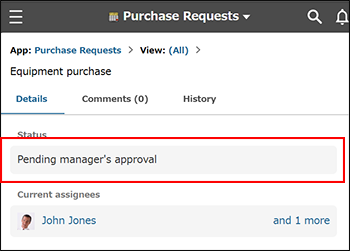
Status
The record's current status is displayed under Status.
Current assignees
The users currently assigned to the record are displayed under Current assignees.
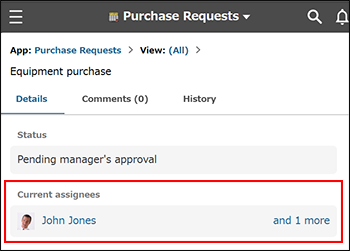 If multiple users are assigned as Current assignees and some have not performed the action, the display name of the user with the lowest user ID among them appears along withand N more.
When you tap
and N more, the users assigned as Current assignees appear. If action is required for all assignees, you can check each user's action status.
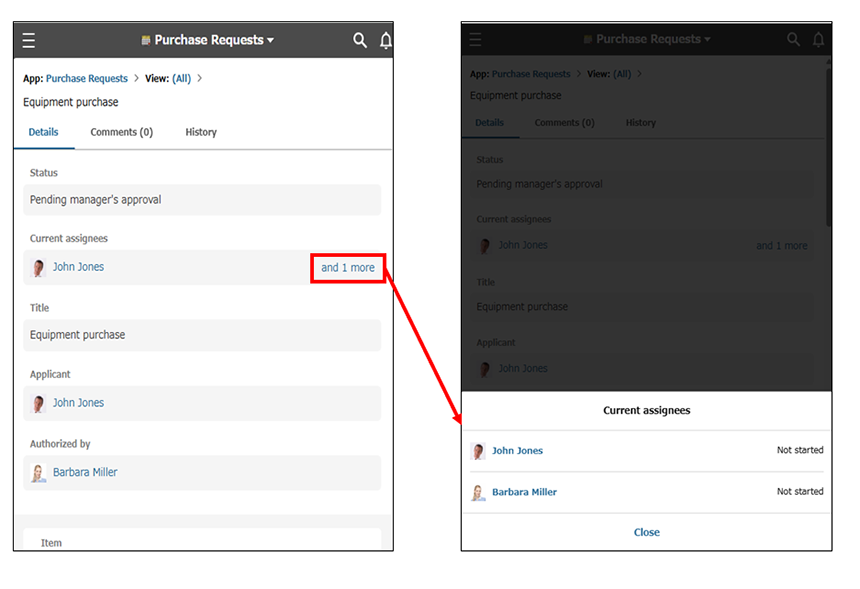
Actions
If you are assigned as one of the Current assignees, buttons to execute actions appear at the bottom of the screen.
When you tap a button, a confirmation screen appears before advancing the process. You can see the flow after executing the action at a glance.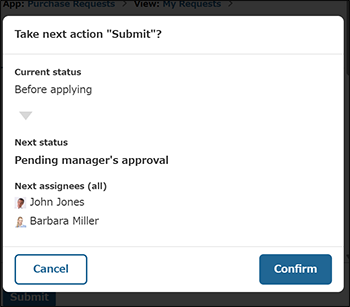
App actions
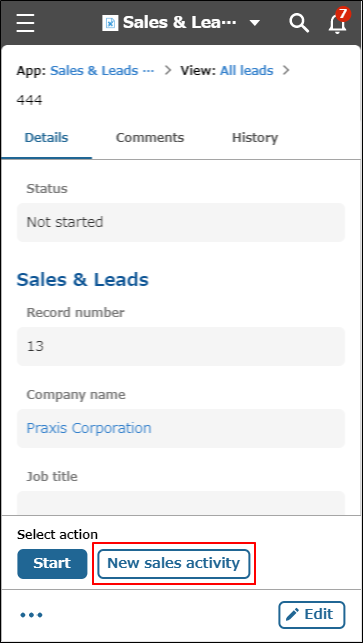
If an app action is set for the app, the app action button appears at the bottom of the screen. When process management is enabled, app action buttons are displayed after the process management action button.
Tapping an app action button will open the action's target app in another tab so you can duplicate the relevant record data.
Search in app
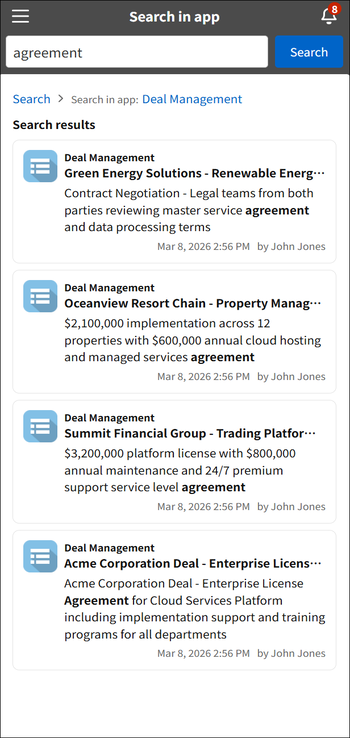
You can search for data in the app you're currently using from the View or Record details screen.
The scope of search is the same as the desktop view. Searches are performed on records, record comments, and attachments.
Reference: Searching for data
The
Search in app screen shows a breadcrumb trail that lets you quickly go to the app's home page (the View screen) or the screen for searching all of kintone.
Space
In a space, you can do the following.
- View announcements (Space body)
- View threads and post comments
- Use apps in the space
- View members of the space on the People tab
- Use apps and spaces that are added in Related links
- Search in space
The scope of search is the same as the desktop view. Searches are performed on the space, threads and thread comments in the space, records and record comments in apps within the space, and attachments in the space.
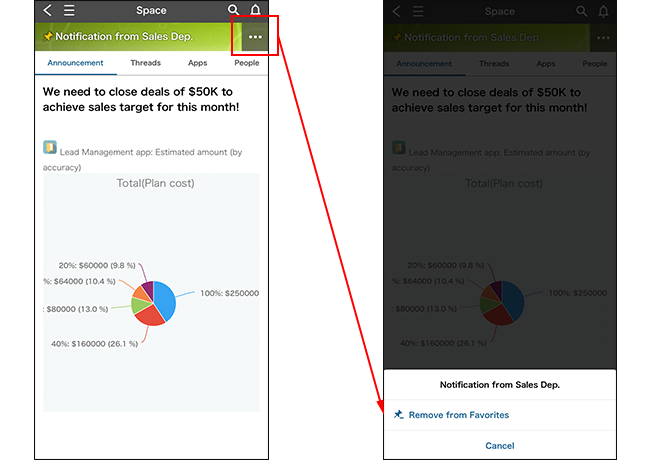
Reference: Searching for data - Add to favorites / Remove from favorites
Some of the operations available in the desktop view (e.g., configuring space settings and adding threads) cannot be performed in the mobile view.
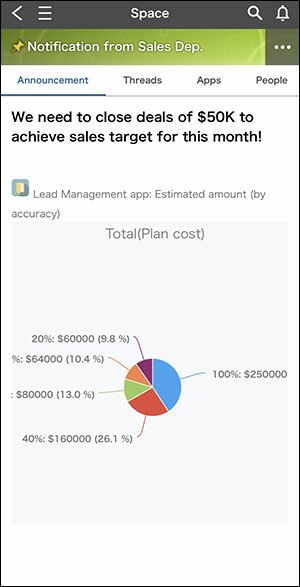
The following items are displayed as tabs on spaces.
- Announcements
- Threads
- Apps (if there are any apps that users are allowed to view in the space)
- People
- Related links (if there are any related links that users are allowed to view in the space)
To add or remove a space from your favorites, tap the Options button at the top right of the screen, then tap Add to favorites or Remove from favorites.
When a space has been added to your favorites, a pin icon is displayed to the left of the space name at the top of the screen.