Blank space
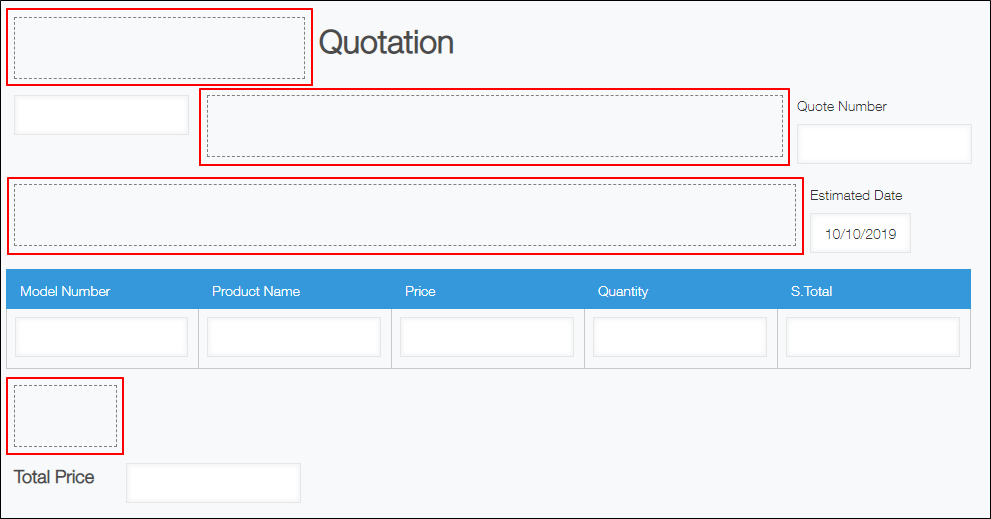
Placing a Blank space field on your app form adds a blank space. You can change the size of the field by dragging its right or bottom edge.
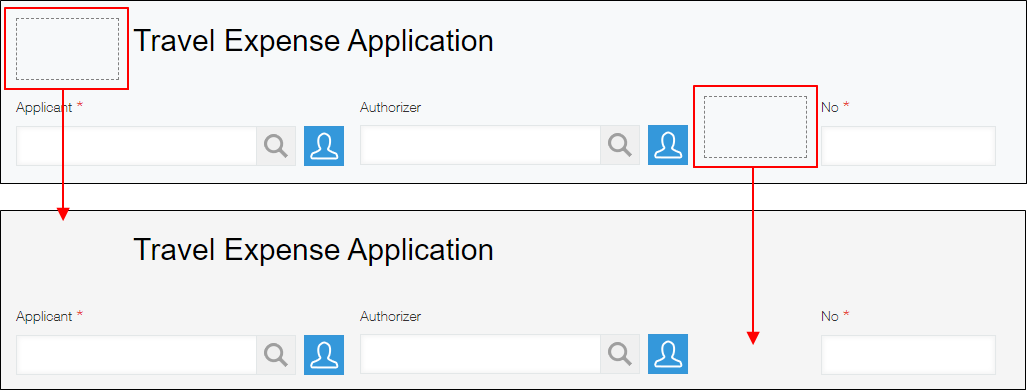
Blank space fields can be used when you want to place elements, such as buttons, on a form using the customization feature.
For details, refer to the following page:
Get Space Element
Field settings
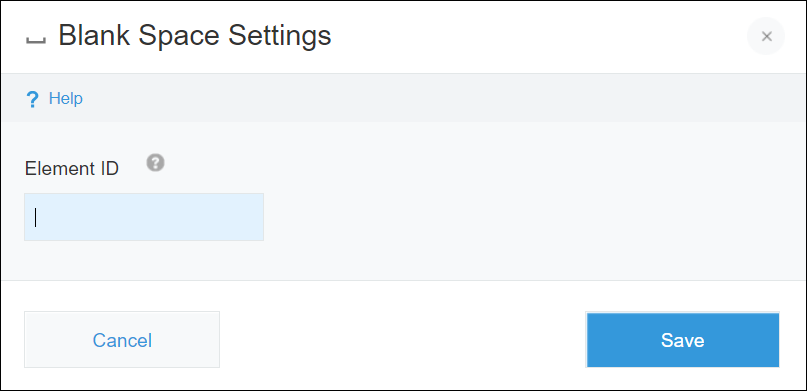
Element ID
When you use the customization feature, you can specify an element ID for a Blank space field.
Values that can be used for "Element ID"
Up to 64 characters can be entered in the Element ID field, and the ID must begin with an alphabetic character.
The following characters can be used for
Element ID. However, you cannot specify a value that is already used as the element ID of another field.
- Alphabetic characters (uppercase and lowercase)
- Arabic numerals
- The following special characters:
- Hyphen (-)
- Underscore (_)
- Colon (:)
- Period (.)
Usage example
When you add fields on a form, they are placed from top to bottom, being left-aligned to the edge of the form.
If you want to add margins to the upper side or left side of your form, to the left or right side of a field, or between lines, you can use Blank space fields to do so.
You can also adjust the location of other fields by inserting a Blank space field where you want to add space and then changing its size.