Communicating with team members using a thread
A thread is a feature similar to a bulletin board and you can create threads by topic in your space. Even if there are multiple threads for various topics in your space, you can communicate with members smoothly or organize the information members exchange in each thread.
This article explains the steps for creating a thread and posting a comment in it.
In the following example, we first create a "Thread for Business Meeting" in the Space for Sales Department, which has been created in
Creating a space for your team, and then post a comment to a member of the Sales Department in the thread.
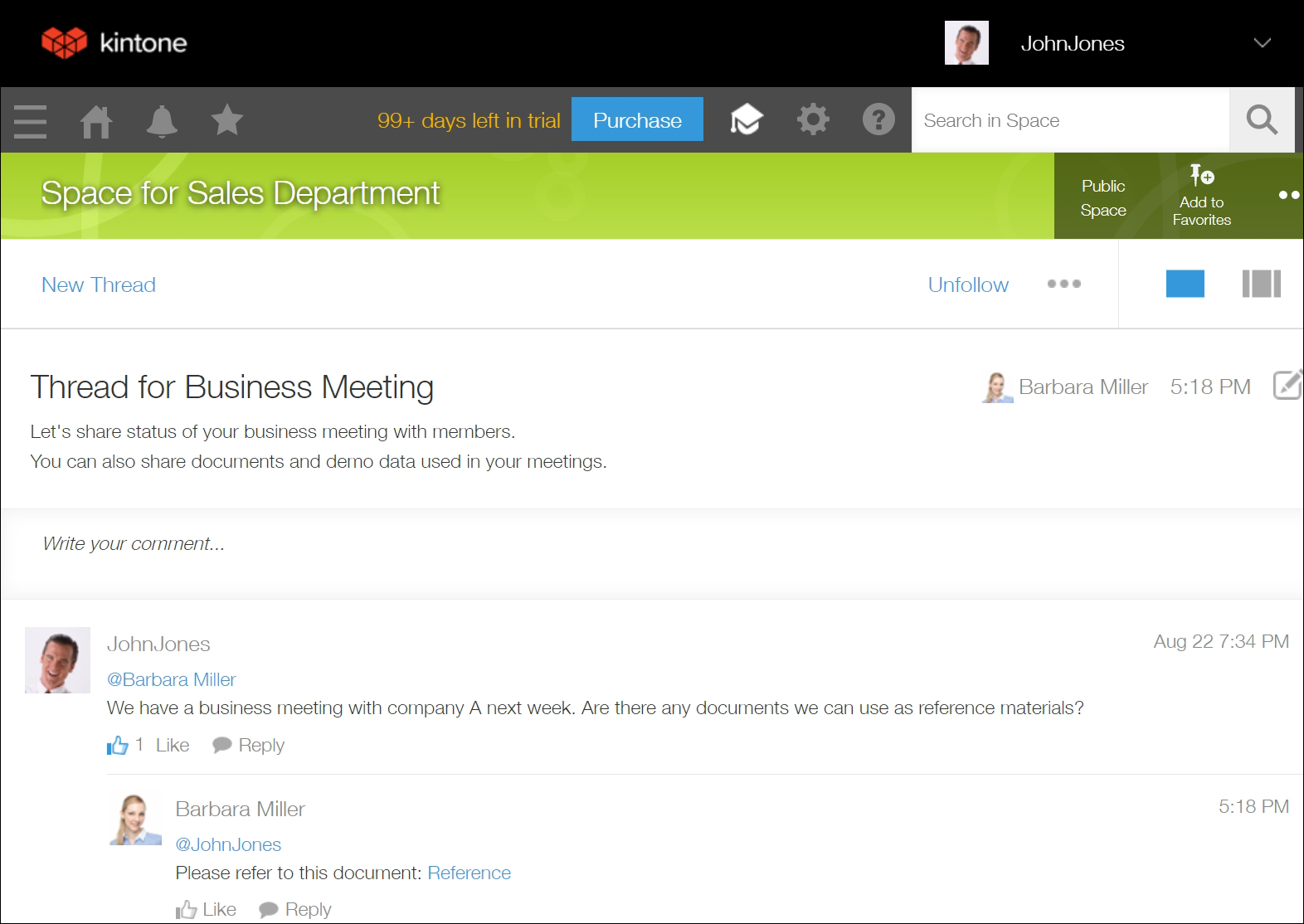
Let's start creating a thread by performing the following steps and you will get to know how to use a thread to communicate with team members.
Create a thread
-
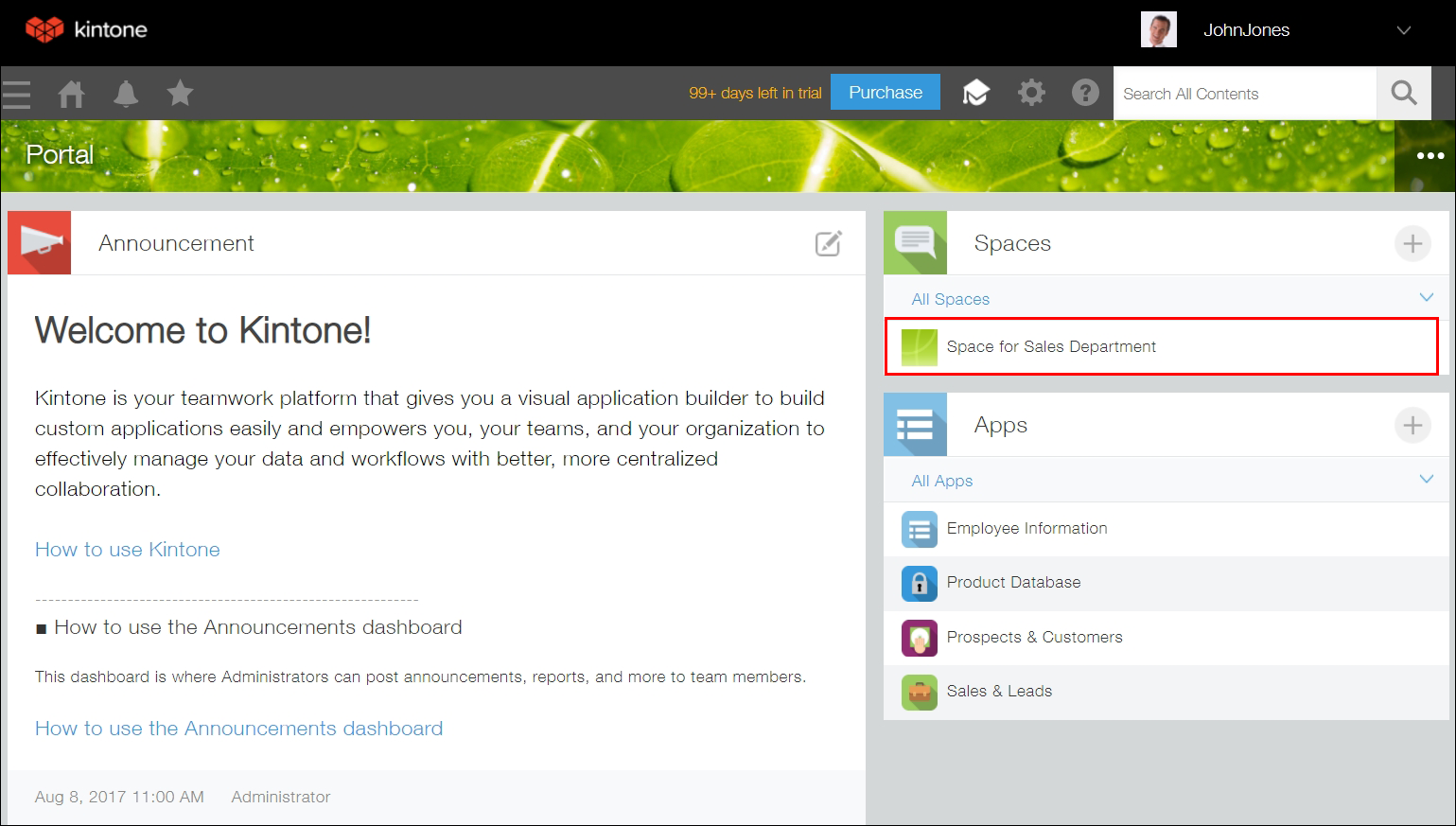
In the Spaces section on the kintone Portal, click Space for Sales Department.
-
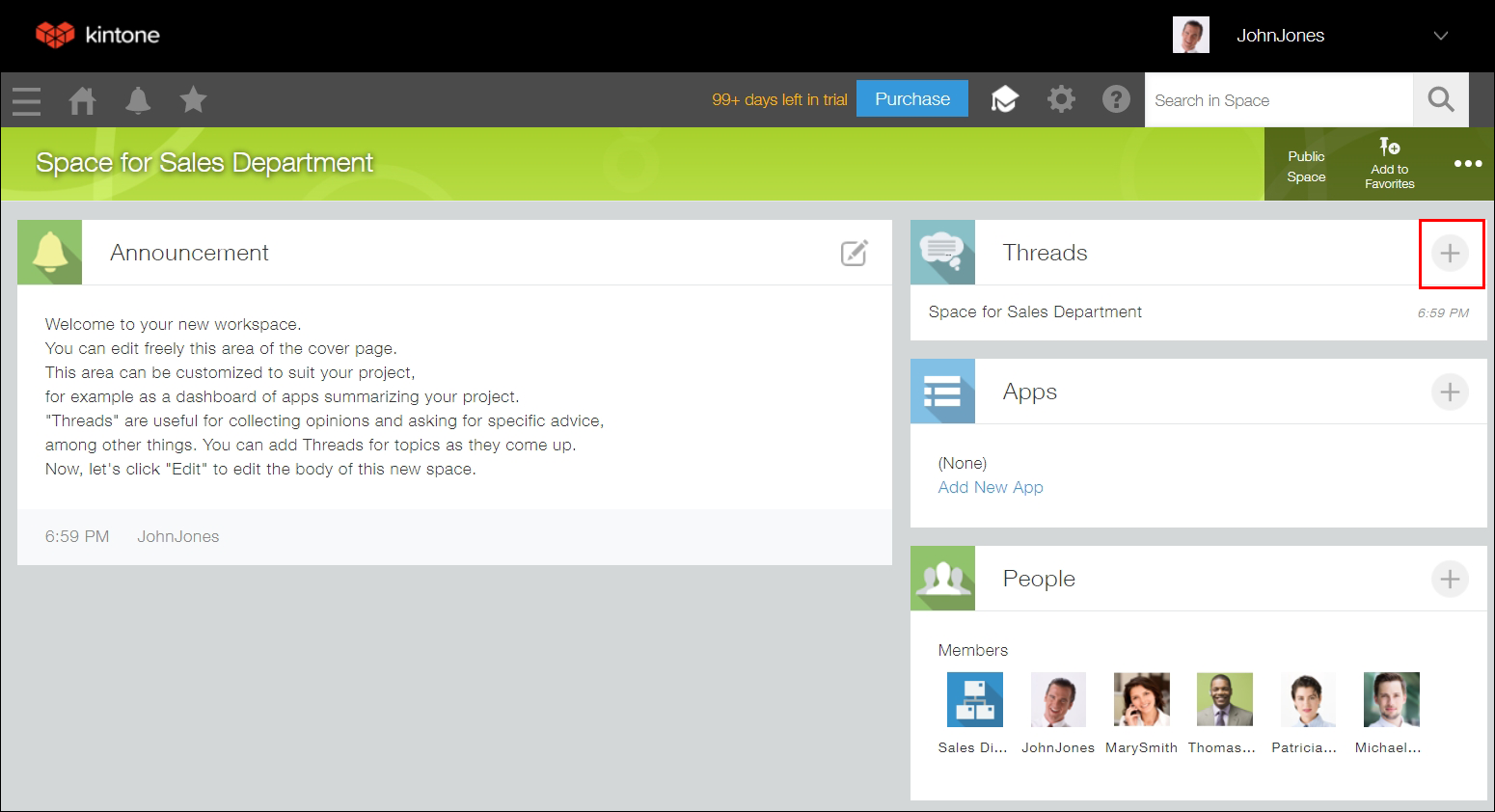
On the space portal, click the New thread icon (the plus sign-shaped icon) in the Threads section.
-
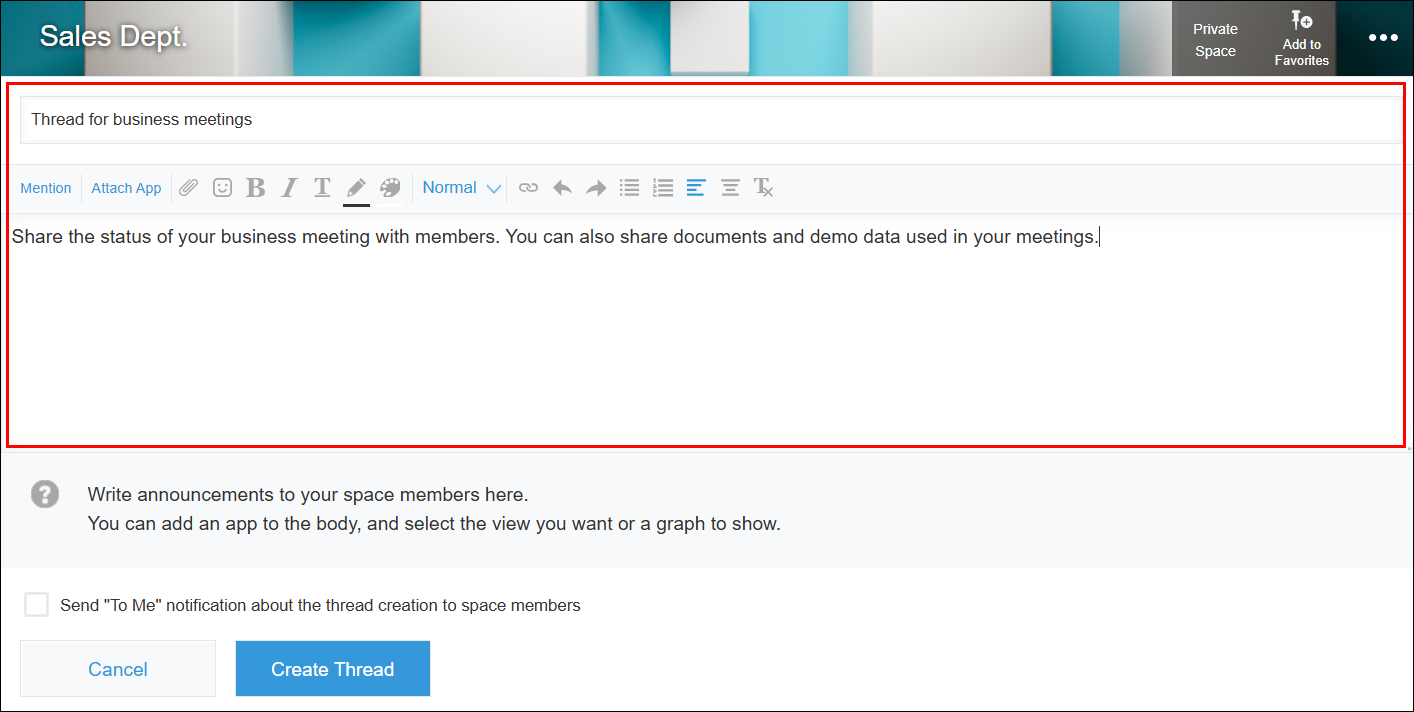
On the thread creation screen, enter the following information.
- Thread title: "Thread for Business Meeting"
- Body text: "Let's share status of your business meeting with members. You can also share documents and demo data used in your meetings."
-
If you want to notify space members that a thread has been created, select the Send "To me" notification about the thread creation to space members checkbox.
-
Click Create thread.
Post comments in the thread
Next, let's write a comment to a team members in the thread.
-
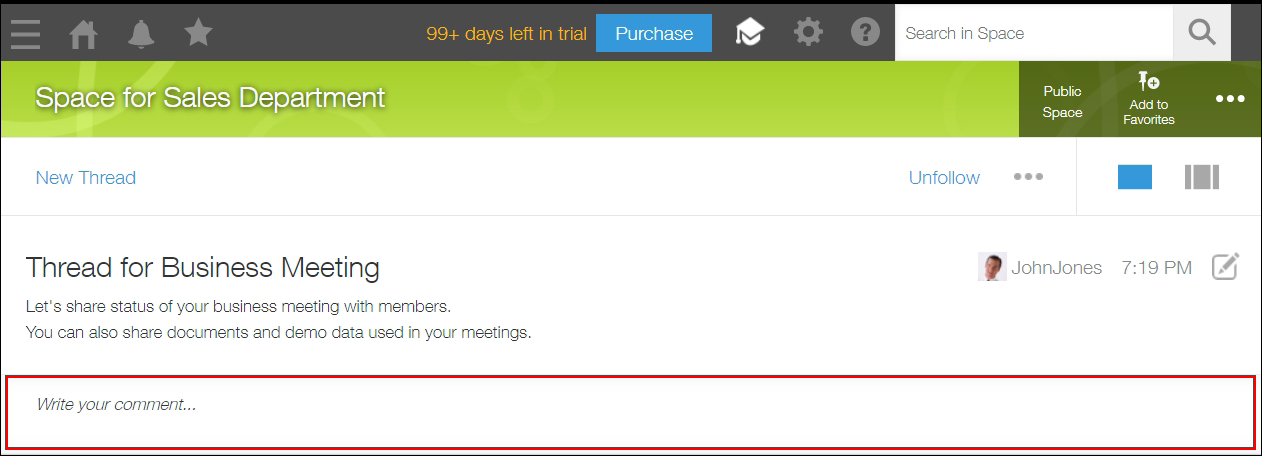
Click the comment field in the thread.
-
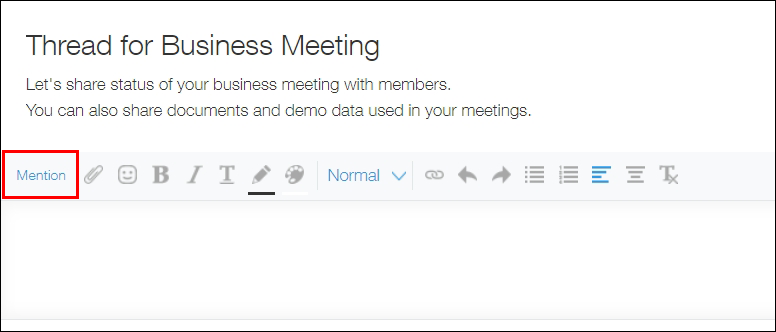
Click Mention or enter the "@" symbol in the field.
-
Type a part of the recipient name you want to send a comment to and select your recipient from the candidate list displayed.
In this example, type "Barbara" and then select "Barbara Miller" from the candidate list.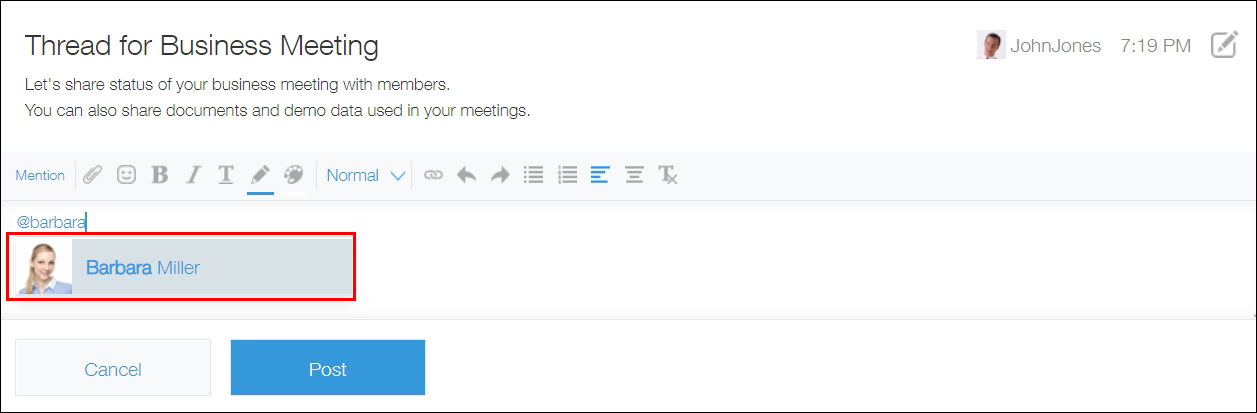
-
Write your comment and click Post.
After posting your comment, a notification will be sent to the specified recipient in kintone.
Check notifications for thread comments
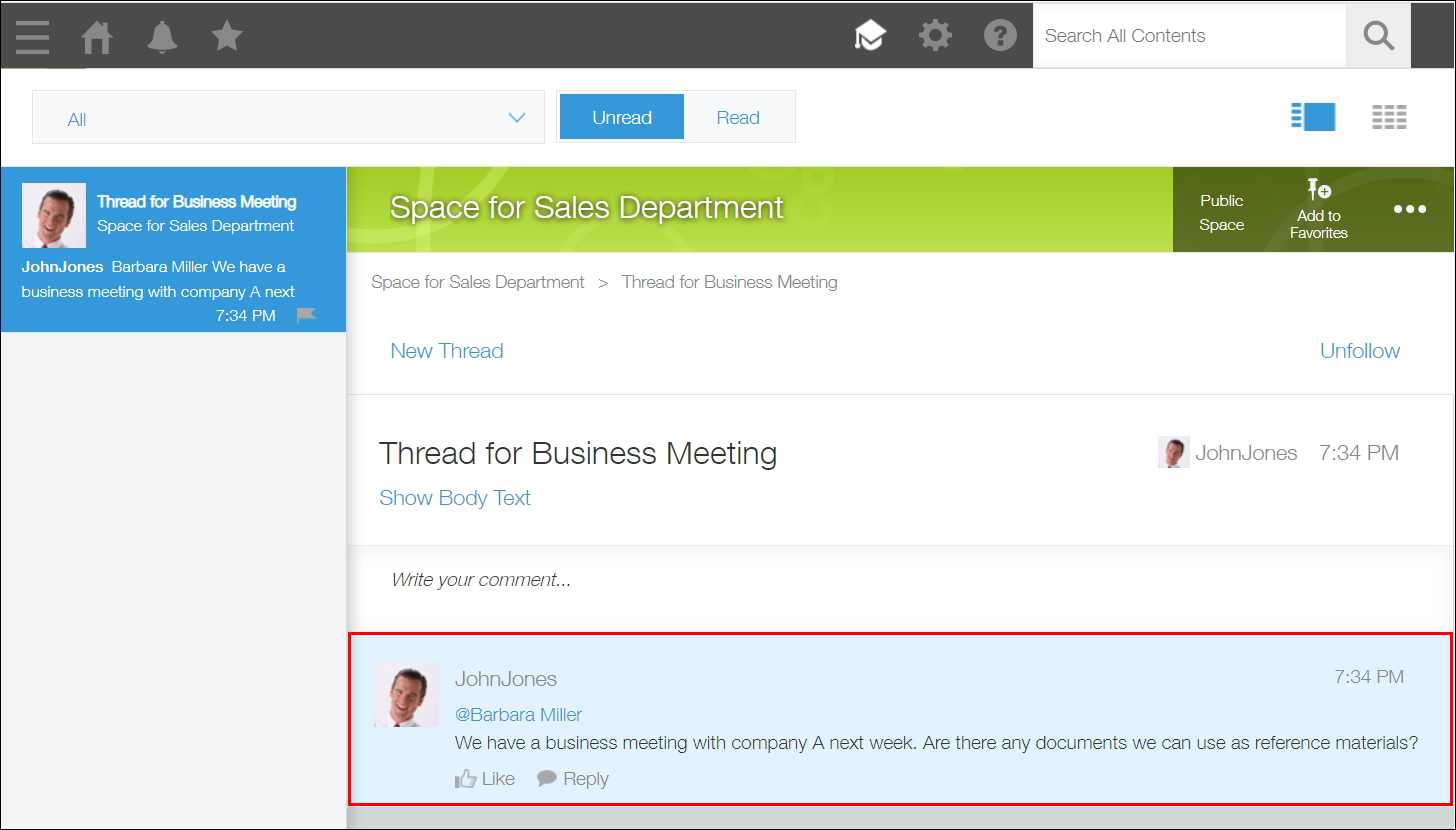
On the kintone screen for Barbara Miller, whom you specified as a recipient, a new comment is displayed in the Notifications section.
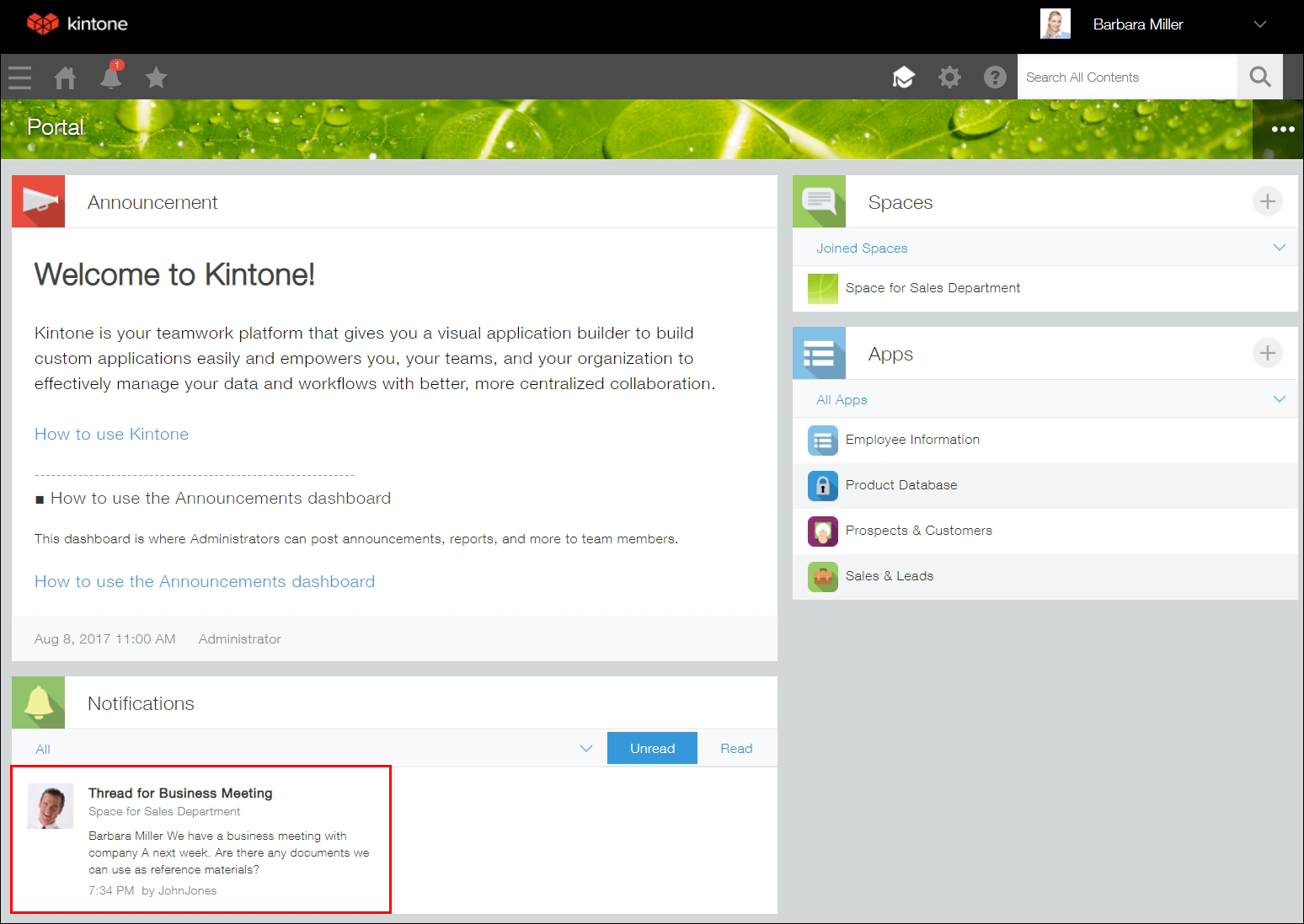
When the recipient clicks on it, the Thread for Business Meeting opens and the corresponding comment is displayed. Additionally, the number of new notifications is displayed on the Notifications icon (the bell-shaped icon at the top of kintone).