
Available field combinations for app actions
Whether fields can be paired together in the app action settings is determined by their field types.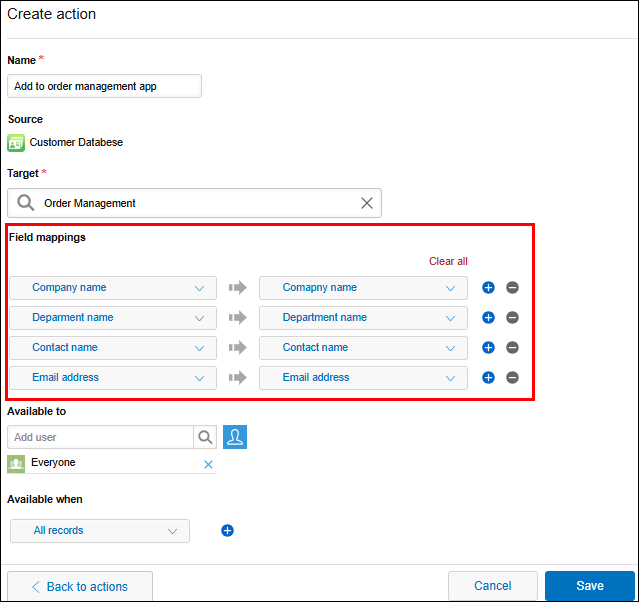
You can generally use the same field type for both the source and destination.
However, the mappings that are possible vary depending on the field type.
For details, refer to the table below.
Available field combinations for app actions
| Source field/data | Fields that can be set as the destination field |
|---|---|
| Record permalink |
|
| Text area fields | Text area fields |
|
|
|
|
| Calculated fields |
|
|
|
|
|
| Date and time fields | Date and time fields |
| Date fields | Date fields |
| User selection fields |
| Department selection fields | Department selection fields |
| Group selection fields | Group selection fields |
| Time fields | Time fields |
| Rich text fields | Rich text fields |
| Created datetime fields | Date and time fields |
| Updated datetime fields | Date and time fields |
| [ドロップダウン] | [ドロップダウン] |
| [ラジオボタン] | [ラジオボタン] |
| Multi-choice fields | Multi-choice fields |
| Check box fields | Check box fields |
| Fields in a table | Fields in a table |
Points to note when copying values from fields with options
When copying values from a Drop-down, Radio button, Multi-choice, or Check box field, note the following:
- The value of the source field is pushed to the destination field if the name of the option selected in the source field matches the name of any of the options configured for the destination field.
- If there is no matching option name, the default value set for the destination field is selected.
However, if the destination field is a Drop-down field that has no default value set, none of the options will be selected. - If field options have localized names in different languages set in the Localization settings, the option names in the source and destination must match in the display language set for the user who executes the app action. If localized names in the user's display language are not set for the options, the default names are compared.
- If there is no matching option name, the default value set for the destination field is selected.
Points to note when copying fields in tables
When copying fields in tables in the app action settings, make sure to keep in mind the following points. Generally, it is easier to configure copying data from one table to another.
-
A field in a table cannot be copied to a field outside of a table.
-
A field outside of a table cannot be copied to a field in a table.
-
Record permalinks cannot be copied to a field in a table.
-
Fields in different tables cannot be copied to a single table. If you try to do so and save the settings, the following error message will appear:
"Cannot copy fields from multiple tables into one table."
Limitations
- Attachment fields cannot be specified as a destination field.
- It is not possible to copy values from fields in a related record list.
- If you use an app action to copy record numbers in an app with an app code set, only the numbers will be copied to the destination field. The app code that is displayed together with the numbers will not be copied.
- In guest space apps, only apps in the same guest space can be specified as the destination app.
Also, a guest space app cannot be specified as the destination app in an app that doesn't belong to a guest space.