Changing user passwords
This page describes the steps for cybozu.cn administrators to change users' password.
Changing passwords individually
-
Access cybozu.cn administration.
Accessing cybozu.cn administration -
Click Departments & users.
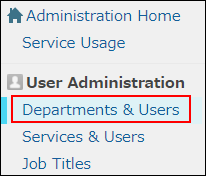
-
In the search box, enter the display name or login name of the user to find the target user.
You can also expand the department tree and select the target user. -
Click the Change icon.
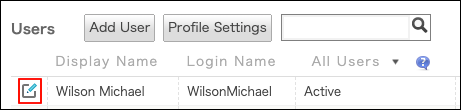
-
In the Account section, click Change password.

-
The Automatically generate password checkbox is automatically selected, and a random password is generated.
If you want to manually enter a password, clear the Automatically generate password checkbox.
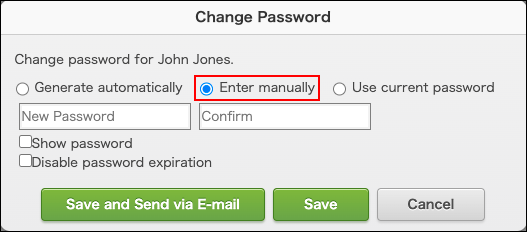 To check the generated password, select Show password.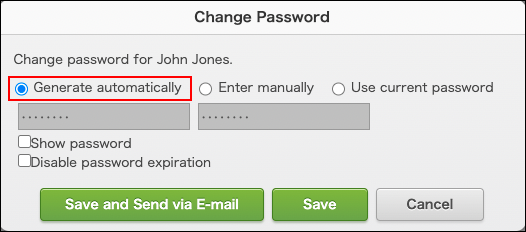
-
Click Change user information.
-
In the Change user information dialog, select whether to send the new password to the user via email.
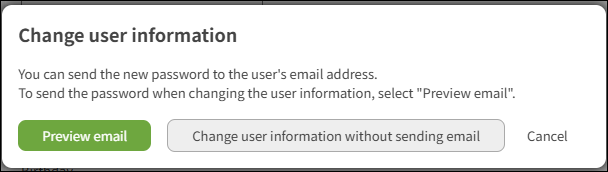 To change the user information and send the new password, click Preview email. Edit the email address as needed, and click Send.
To change the user information without sending the new password, click Change user information without sending email.
Changing passwords in bulk
You can use a file to change user passwords in bulk.
Note that, if you change them in bulk, you cannot use the feature to notify users of their new passwords by email.
-
Export user information to a file.
Exporting users, departments, and other information to files -
Open the file that is used to export data, and change the passwords.
Old passwords are not included in the exported file.
File format for user information -
Import the updated file.
Adding or changing users and departments using a file -
Notify users of the new passwords.