Changing login page settings
This page describes how to change the title and the background image of the login page.
Steps
-
Access cybozu.cn administration.
Accessing cybozu.cn administration -
Click Login page.
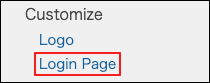
-
Enter a title in the Title section.
Leave the field blank if you do not want to display the title on the login page. -
In the Image file section, click Browse and then select the target image file.
-
Click Save.
"Title"
By default, the company name registered during the trial sign-up is configured. You can change the information as needed.
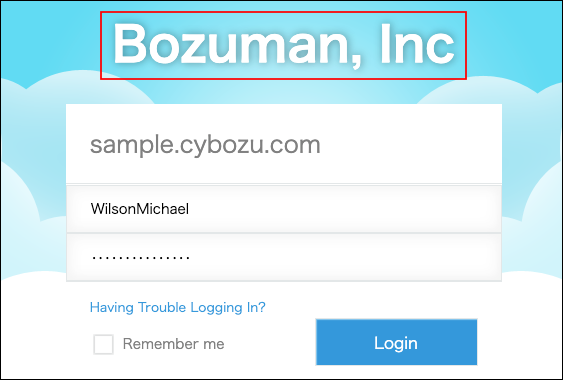
"Image file"
The following file formats are supported: The maximum file size is 5 MB.
- GIF
- JPEG
- PNG
- BMP
The configured background image is enlarged or shrunk according to the users' monitor size.
If the width of the image file exceeds 2,048 px, the image is shrunk with keeping the aspect ratio.
Reverting to the default
-
Access cybozu.cn administration.
Accessing cybozu.cn administration -
Click Login page.
-
Click "x" on the right side of the Image filesection.
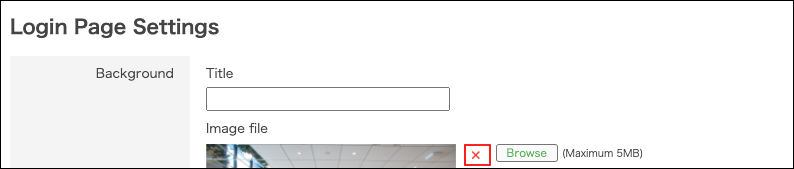
- In the Title section, enter the company name registered during the trial sign-up.
-
Click Save.